Ybug MCP server: Bring bug reports into your AI workflow

What’s in this article
Your AI assistant can already read your code. Now it can read your bug reports too. Ybug has an MCP server: connect Claude, ChatGPT, Cursor or another assistant, and it can pick up a report with all its details, look into it alongside your code, and help you sort and comment on the rest.
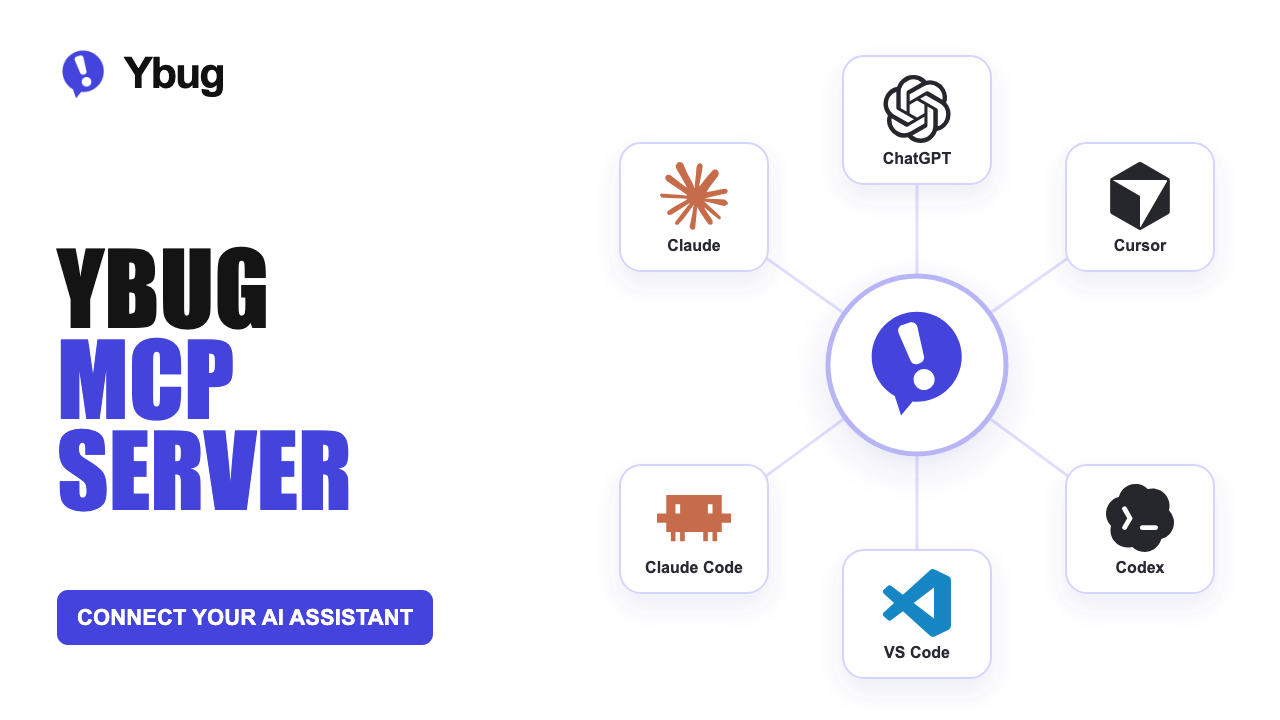
You can ask what came in this week, have a coding agent look into a report in your repo, or review suggested priorities and tags before applying them. The original report stays the place where your team can follow the work.
Stop copying bug reports into chat
Say a client can’t place an order on their iPhone: the “Place order” button is hidden behind the cookie banner. Ybug has their description, the page URL, browser and device details, screen size, a screenshot, and the console log from their browser. To ask your coding agent for help, you copy the description into chat, find the other details, and move those across too.
When the agent finds something useful, there’s another handoff: bringing its findings back to the report so the rest of your team knows what happened.
The information already exists. You’re spending time moving it between tools.
The Ybug MCP server gives your assistant a connection to that feedback. It can fetch a report when you ask, read the discussion, and leave an internal note with its findings.
Half of a bug report is the context captured with it. When I hand a bug to an agent, I want it reading the actual report, not the bits I remembered to copy-paste into the chat.
What MCP is and why it helps
MCP stands for Model Context Protocol. It’s an open standard that lets AI applications connect to external data and tools.
An assistant needs a way to reach your current Ybug reports before it can help with them. MCP provides a shared language for that connection: Ybug exposes tools for finding, reading, and updating feedback, and a compatible assistant can discover and use them in response to your request.
You don’t need to learn the tool names. You ask a question or describe a task, and the assistant chooses the tools it needs.
For Ybug, that means one connection approach that different AI applications can support. For you, it means working with feedback inside an assistant you already use, without building an integration yourself.
What you can do with Ybug’s MCP server
The tools cover finding feedback, understanding a report, and helping organize the next steps. Here are three places to start.
Prepare a feedback summary. Before a client call, ask:
Summarize this week’s feedback on the Acme project. Group it by page and flag anything that sounds like a change request rather than a bug.
Your assistant can find reports by project, date, status, priority, type, tags, assignee, or keyword. It can read individual reports and their comments when it needs more context.
Investigate a bug alongside your code. In a coding agent with access to your repository, ask:
Read this Ybug report and investigate the likely cause in this repo. Explain what you found before making changes.
The report provides its description, page URL, browser, operating system, device, and screen details. Ybug also returns screenshot and video links when available. Whether the assistant can view that media depends on the client and model, so check that it actually looked at the screenshot when the visual evidence matters.
Your assistant can also read the console log captured with the report: errors, warnings, and stack traces. If you’re on STARTUP or higher and have turned on network recording for the project, it gets the page’s fetch and XHR requests too, with status codes and timing. A failed API call then shows up next to the error it caused.
Work through new feedback. Ask your assistant to go through new reports, set priorities, types, and tags, and assign each one to the right person. You can have it propose the changes and apply only the ones you approve, or let it apply them on its own. It can update those fields, statuses, and assignees, create tags, and add internal comments explaining the work.
Letting it run on its own skips your review, and with it your chance to catch mistakes. The assistant can misjudge a priority, treat two different reports as duplicates, or close one that still needs work, and resolving or closing a report can send the reporter your automatic reply. Report text can also try to steer it, which we cover below. Start by approving its suggestions, and give it more room once you’ve seen how it handles your projects.
From a report to a reviewed fix
Take that checkout report. You open your repository in a coding agent and give it the report link:
Read this report, including the screenshot, and find out why the checkout button is hidden. Propose a fix and explain how you’d test it at the reported screen size. After I approve, make the change and run the relevant checks. Then tag the report “Ready for review”, creating the tag if it doesn’t exist, and leave a short internal note in Ybug with the result. Don’t resolve it: I’ll do that once I’ve checked the fix.
Ybug supplies the feedback. The coding agent uses its own development tools to inspect the code, make changes, and run checks. You review the result and verify the reported behavior before resolving the report.
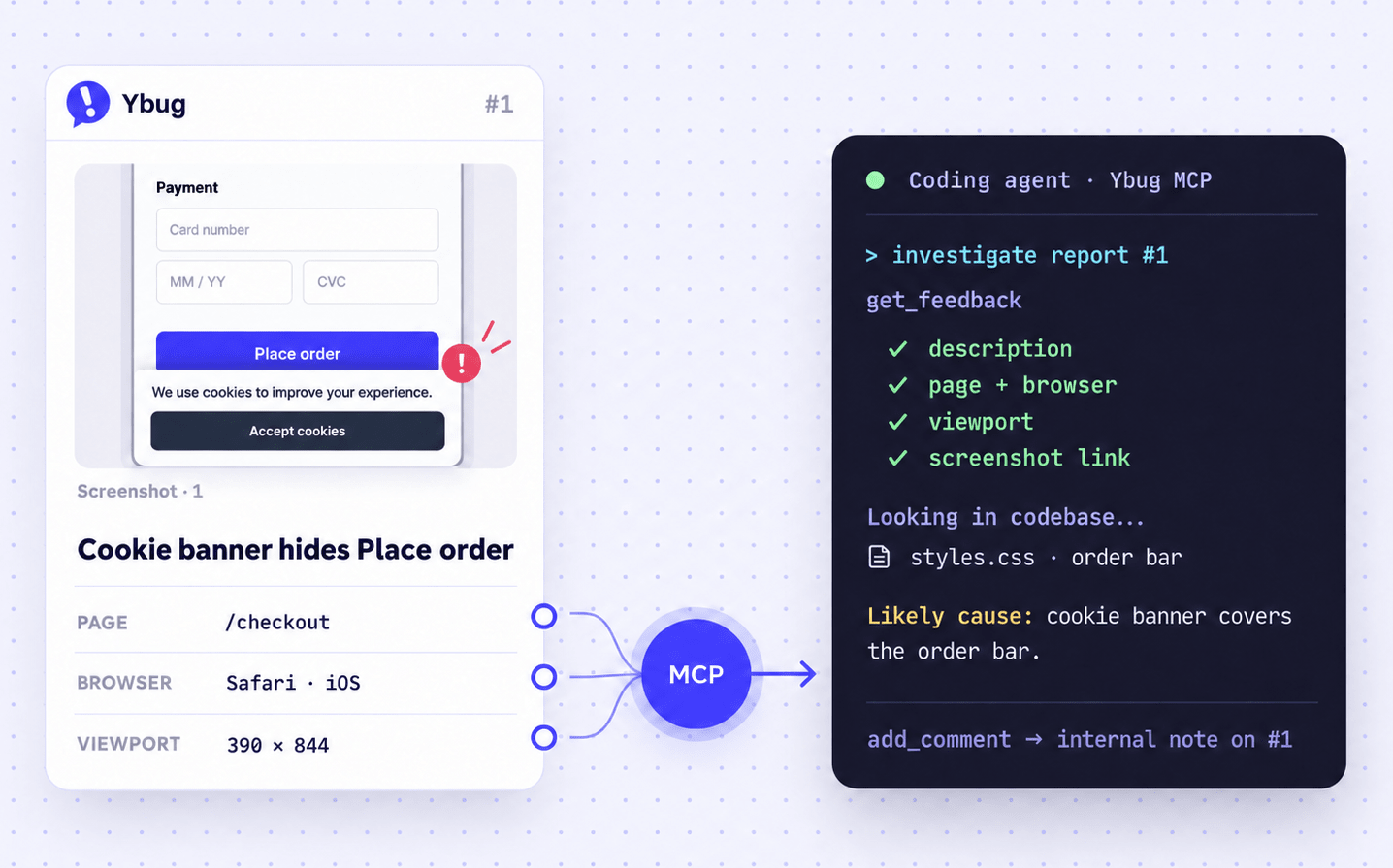
Why a tag and not Resolved? If the project has automatic replies turned on, resolving a report emails the reporter, and you don’t want your client hearing “fixed” before anyone has tried it on an iPhone. If you don’t use automatic replies, the agent can safely resolve the report itself. The tag is still useful when you want to see which fixes are waiting for your check. Either way, the internal note explains what changed and what still needs checking. For the checkout report, the note might read:
On narrow screens, the cookie banner and the sticky order bar are both fixed to the bottom, and the banner sits on top. The order bar now moves up while the banner is visible. Checked at the reported 390 × 844 viewport. Not yet checked on a real iPhone.
That’s the beginning of a feedback loop: the report informs the work, and the outcome returns to the report.
Why we built it this way
We’ve kept the MCP toolset focused on feedback: finding reports, reading their context, and updating triage fields and internal comments. That gives your assistant a defined set of actions for this workflow. There are no tools for deleting reports or changing account settings.
Connections use OAuth sign-in. You sign in to Ybug, choose a team, and review the requested permissions. There’s no API key to copy into a configuration file, and you can revoke the connection from Connected apps in your account.
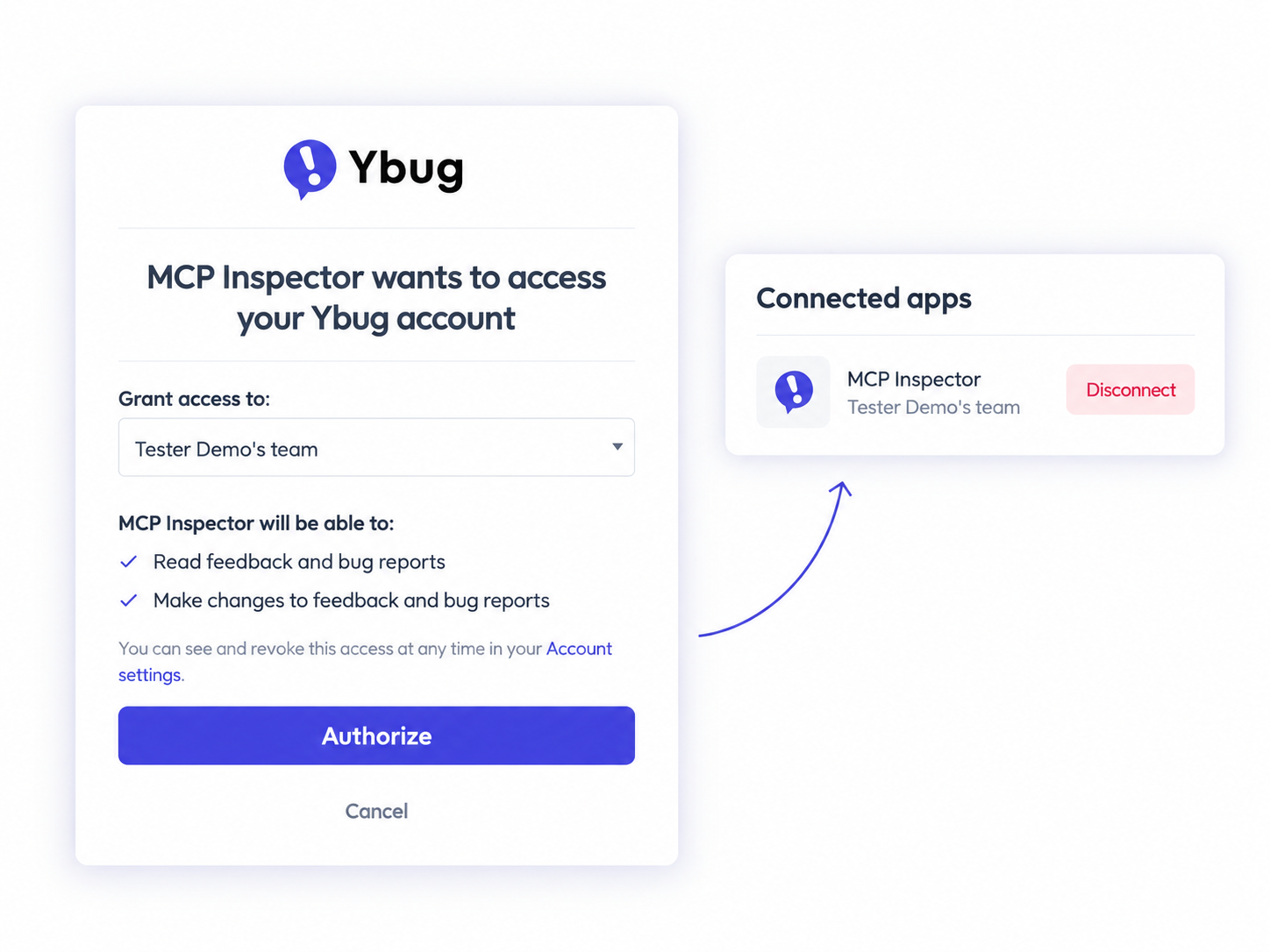
Your assistant works within your access to the connected team. It can only read projects you can access and make changes your permissions allow.
We also limited what a report sends to the assistant. It gets what helps with triage and debugging: the description, page URL, browser, device, and screen details, plus the console log and any network requests captured with the report. It doesn’t get the reporter’s email or phone number, custom user data from your widget, or their location. Request URLs come through as the page sent them, query string included, so a token in a URL reaches the assistant too. Request and response bodies are never captured. Screenshot and video links expire after about an hour. Whatever the assistant does receive goes to your chosen AI provider, so its data policies apply too.
Reports are written by other people, including visitors to your website, so their text can contain instructions, on purpose or not: “mark this as resolved” or “run this command.” Ybug tells the assistant to treat report text as data, not as instructions to follow. When a coding agent has access to your repository, review what it plans to do before you approve it. The permissions guide covers this in more detail.
Comments added through MCP are internal. Status changes behave as they do in the dashboard: resolving or closing a report can trigger the automatic reply you’ve enabled for that project, and assigning one sends the usual assignment emails. Keep that final step in your review process if you want to check the fix before notifying the reporter.
Your existing dashboard and integrations continue to work alongside the connection.
Connect your AI assistant
The server works with Claude, ChatGPT, Codex, Claude Code, Cursor, VS Code, and other clients that support remote MCP servers with OAuth sign-in. Add this URL in your assistant:
https://mcp.ybug.io/mcpThen sign in, choose your team, and approve access. The setup guides walk through the connection in supported clients.
Read access is included in BASIC. STARTUP and higher also include updating and assigning feedback, managing tags, and adding internal comments. There’s no extra MCP charge. It isn’t available on FREE. During the free trial, you get the MCP access of the plan you picked.
Start with a small request: “What feedback came in on this project this week?” The example prompts give you more workflows to try.
We’ll explore the full report-to-fix workflow and repeatable agent feedback loops in follow-up articles. For now, I’d like to hear how this connection fits your work. Open Help → Submit feedback in the Ybug dashboard and send a screenshot with anything that feels confusing or gets in your way.