Quick search, comment attachments and a report page your team owns

What’s in this article
Once feedback piles up, two things slow a team down: finding the report you mean, and turning it into a task without losing what the client said. Quick search handles the first from any page of the dashboard. The report page handles the second: the team’s description now lives apart from the reporter’s words, comments take files and formatting, and the activity reads as one timeline.
Find a report from anywhere
You usually remember something about a report: the client who sent it, a word from the title, its number from a Slack thread. What you often don’t remember is which project it landed in. For an agency running twenty client sites from one account, that meant guessing a project, scanning its list and trying the next one.
Now press ⌘K (Ctrl+K on Windows and Linux) on any page of the dashboard, or click Search… in the top bar. Type two or more characters and Ybug searches every project you can see in the current account, matching the report title, the description, and the reporter’s name and email. A client’s email address is enough to find “the thing I reported last week.” Projects show up in the same list, and with nothing typed you see your starred projects.
Report numbers work too. Type 142 or #142 and that report goes to the top. The same number can exist in several projects, so when you search from inside one, its report wins the tie.
The arrow keys move through the results, Enter opens one and Esc closes the box. / opens search as well, as long as you’re not typing in a text field. We didn’t invent new shortcuts: ⌘K and / already do this in GitHub, Linear and Slack.
Advanced search, now for everyone
Quick search shows up to eight reports. View all results opens the advanced search page with your term filled in, where you can filter by project, status, type, priority, assignee and tag across all your projects at once.
That page isn’t new, but most of you have never seen it. It sat behind a switch in Team → Experiments, because statuses and tags used to belong to individual projects, and a filter across projects had no single list of statuses to offer. They’re shared across the account now, so the switch is gone and advanced search is on for everyone.
Neither search feature is tied to a plan: finding your own feedback shouldn’t be an upsell. Search covers reports and projects, not comments, tags or console logs, and it only shows reports from projects you can already open. We wanted it to answer “where’s that report?” fast before teaching it anything else.
The description is yours, the original is theirs
Most teams don’t leave a report the way it arrived. “The button doesn’t work on my phone” becomes “Checkout button unclickable on iOS Safari, hidden under the cookie bar.” The report turns into a task, and a task needs a description the team can work from.
The trouble was that the description had two readers. Replies to the reporter, including the automatic one on Resolved, quoted that field back to them as their own message. A client who wrote two plain sentences could get back a technical diagnosis and an internal note. So teams either left the description alone or edited it with the client looking over their shoulder.
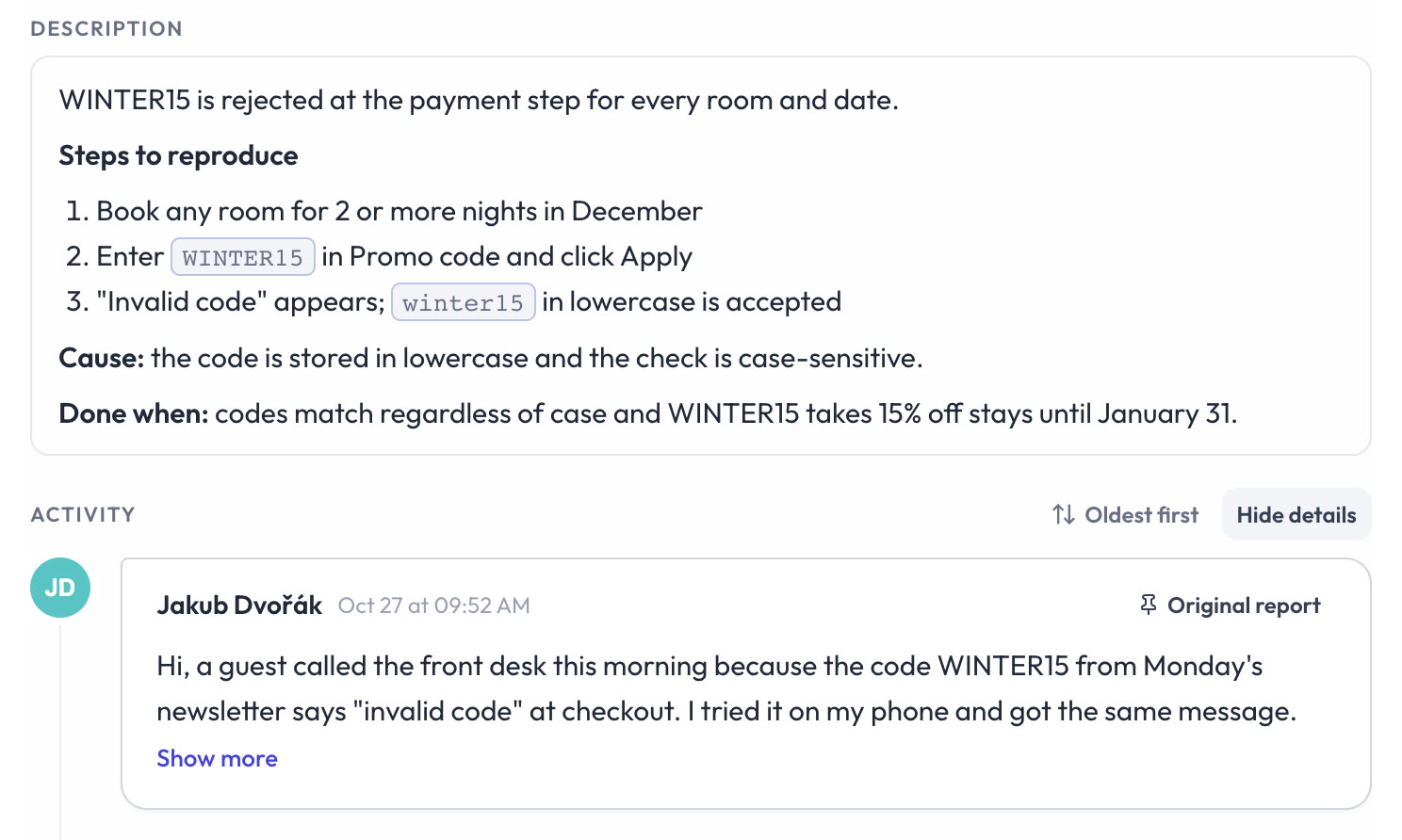
Now the team description and the original report are separate. The reporter’s text sits at the top of the activity as the Original report and stays exactly as they wrote it. The Description belongs to the team and never goes out in an email to the reporter, so you can write it for the people doing the work: steps to reproduce, the cause once someone finds it, what “done” means, a link to the pull request, a screenshot from staging.
Click Write a description for the team, or Start from original to copy in the reporter’s text and rewrite it. It uses the same editor as comments, so formatting and files work there too, and files you add stay with the team. The description is what the feedback list, the board and team notifications show, and what arrives when you send the report to Jira or GitHub afterward. Once it exists, the original collapses to two lines with Show more.
Emails to the reporter keep quoting the original. The title is the exception: it stays the team’s and replies use it as the subject, so rename with that in mind. Search looks in both texts.
Activity, now a timeline
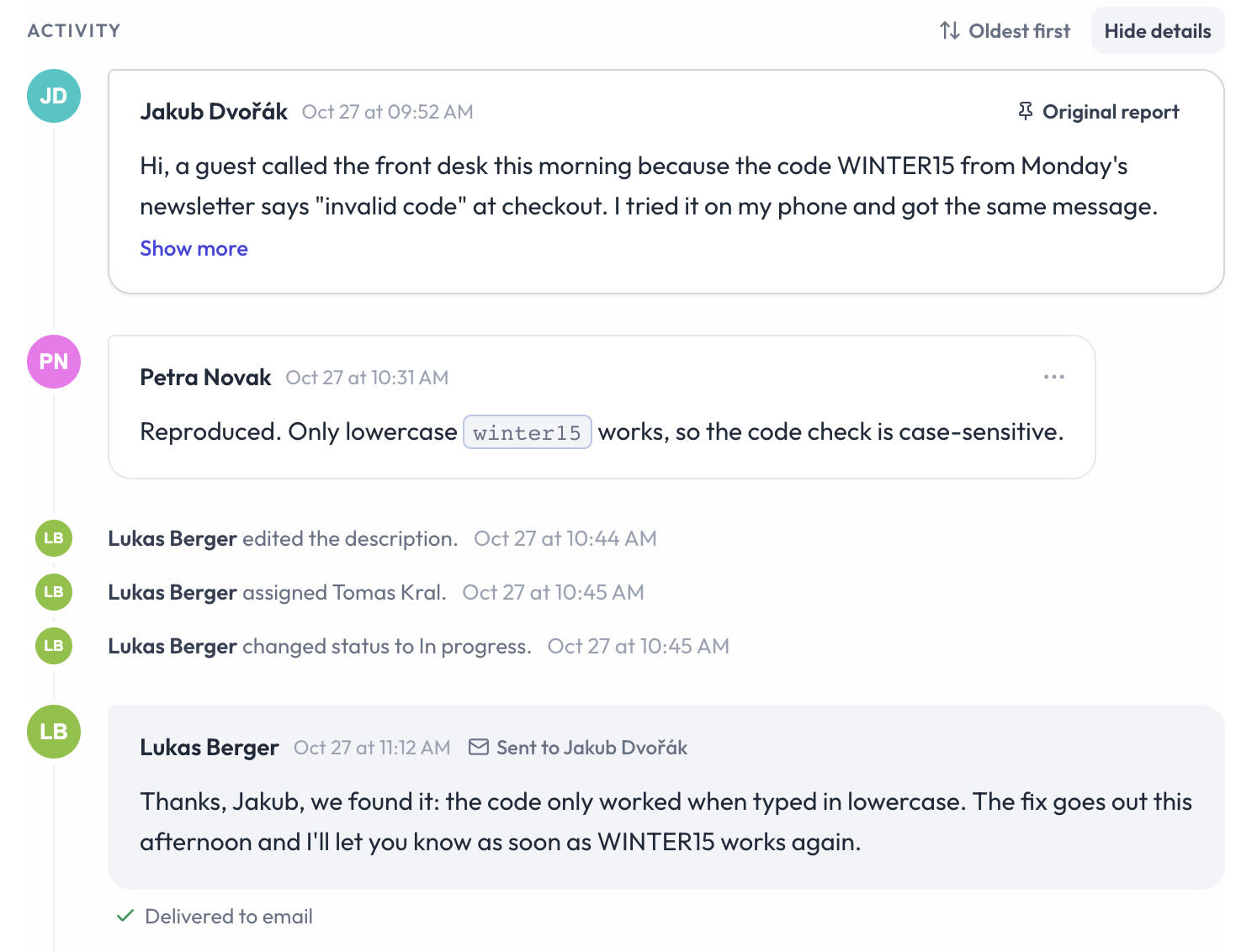
On the old page, comments, replies and status changes read as separate blocks, and it took a moment to see what happened in what order. Now everything runs down one line under Activity, with the original report at the top. Turn on Show details and status changes, assignments and edits join the line in their place. The sort menu switches between Oldest first and Newest first, and the original stays pinned at the top either way.
Comments say who they reached: Sent to and the reporter’s name for a reply, by email for an answer that came back by email. Everything else is internal. Above the editor you pick Comment or Reply to the reporter, so it’s clear which one you’re sending before you send it.
Comments with files and formatting
A comment is often where a fix gets explained: a screenshot from staging, the client’s brand guide as a PDF, a CSV of broken URLs. Dashboard comments used to be plain text, so those files ended up in Slack or email.
Now you can attach up to five files per comment by dropping them onto the editor, pasting an image, or clicking the paperclip. A comment still needs some text. The editor also supports bold, italics, links, lists and code. Use the toolbar or keyboard shortcuts such as ⌘B / Ctrl+B and ⌘I / Ctrl+I. Images show as thumbnails and open in a full-screen viewer with zoom and download.
Formatting and files carry into email. Notifications and replies to the reporter list the files with links that open without signing in, and files on internal comments never go to the reporter.
Make room for the report
A report page has two jobs: the left column shows what was reported (the screenshot, the description, the console), and the side panel is where you act on it with status, assignee, tags and integrations. Which side deserves more space depends on what you’re doing. Reading through a long console log calls for a wide report; triaging a busy project with plenty of tags calls for a wider panel. Now you can drag the edge between the two columns and set the split yourself. Ybug remembers the width in this browser, and a double-click on the edge resets it.
Why the original can’t be edited
We could have kept one description and let teams edit it with a warning. That’s what most website-feedback tools do. Help desks went the other way long ago: the customer’s message is a record and nobody rewrites it. Feedback from a client is closer to that, so the original is deliberately read-only. If you need its text somewhere else, Start from original copies it into the description.
What hasn’t changed
Until someone writes a description, lists, the board, notifications and integrations show the reporter’s text as before, and the page reads much like it used to. In the REST API and MCP, description still returns the current text and can still be changed, but like an edit in the dashboard, it no longer changes what the reporter sees in emails.
Reports edited before this release have no separate original, because those edits overwrote the reporter’s text. For them, the current text shows as the original and keeps going into replies. Every other report keeps the reporter’s words from now on.
Tell me what’s missing
If search misses a report you expected to find, or the new report page gets in the way of how your team works, tell me. Open Help → Submit feedback from the page you’re on. Yes, that’s Ybug again.