Ybug + Notion: turn visual feedback into ready-to-triage tasks

What’s in this article
Ybug now integrates with Notion, so teams can send website feedback and bug reports directly into the Notion databases where they already plan, triage, and track work. Instead of rebuilding reports from screenshots, emails, and chat messages, you can capture the issue with Ybug and turn it into a contextual Notion page in a few clicks.
Bug reporting should be simple. In practice, it often turns into a small detective story. Someone spots an issue on your website, takes a screenshot, pastes it into a chat, and adds something like “the form is broken.” Then someone else has to ask for the page URL, browser, device, screen size, console errors, and whether the screenshot shows the whole story.
The feedback is valuable. The admin work around it is not.
Key takeaways
- Ybug can create Notion pages from feedback reports, with screenshots and context included.
- You choose the Notion database for each Ybug project.
- Issue tracking databases are the cleanest fit, but any accessible database can work.
- Teams can auto-forward every report or review reports in Ybug before sending them.
- Reporters do not need a Notion account to submit feedback through Ybug.
Meet the Ybug + Notion integration
The new Notion integration connects Ybug’s visual feedback workflow with the Notion workspace your team already uses. A tester, client, or user clicks the Ybug Feedback button on your site, marks the page, adds a note, and submits the report.
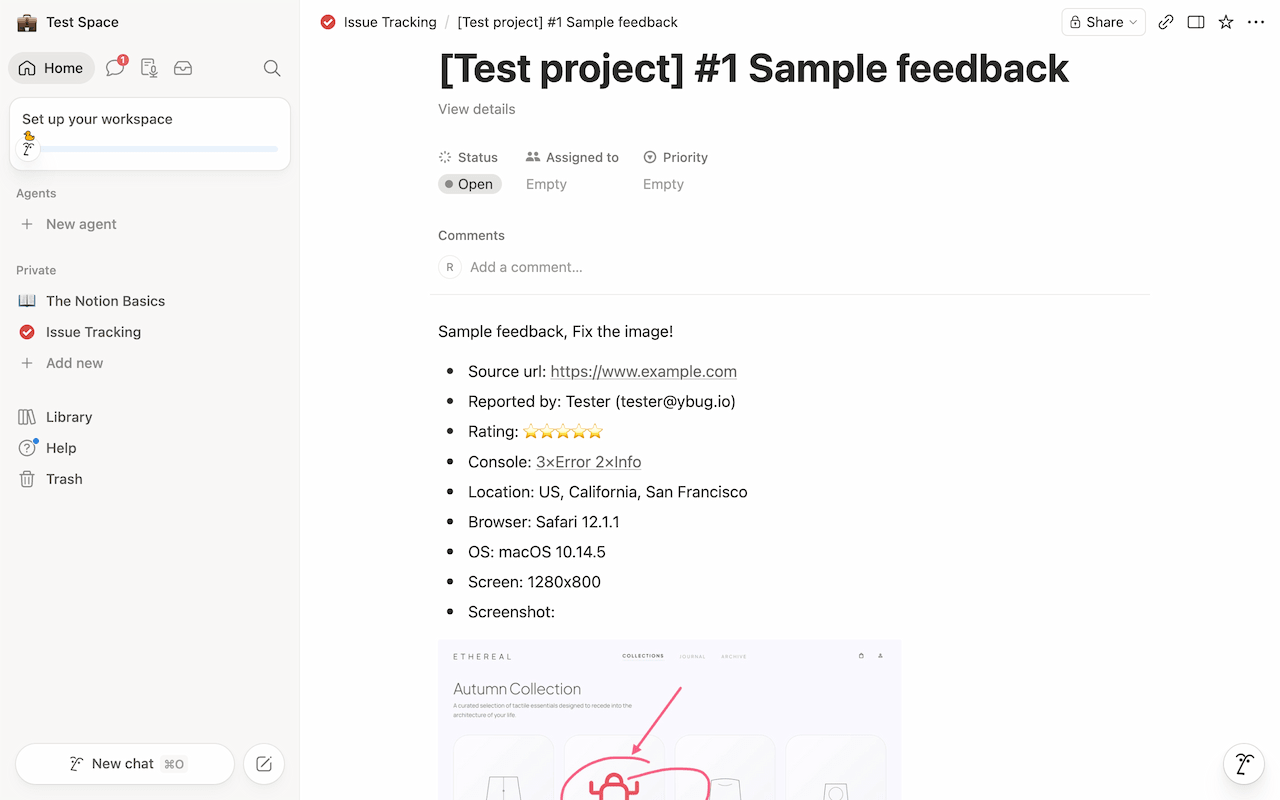
Ybug captures the context behind that report: the screenshot, source URL, browser, operating system, viewport, reporter details, media links, console details when useful, and a link back to the original Ybug report. Then it creates a page in the Notion database you selected.
That means your team gets a useful Notion item from the start, not an empty task with a blurry screenshot attached.
How the workflow works
The flow is intentionally simple:
- Capture: A user clicks the Ybug widget, points to the issue, and writes a short note.
- Context: Ybug collects the technical details in the background.
- Forward: The report is sent to your selected Notion database as a new page.
- Triage: Your team reviews it in Notion using your existing views, defaults, and automations.
You can send reports automatically for fast-moving projects, or keep them in Ybug first and forward only the reports worth tracking. If Ybug is mostly your capture layer, close-after-send can keep the dashboard tidy after a report is pushed to Notion.
Why teams use Ybug with Notion
Developers get better reports. A Notion task is only useful when it has enough information to reproduce the issue. Ybug includes the visual proof, source page, browser details, and console clues that usually get lost between the first report and the actual fix.
Product managers triage faster. Product and QA leads can review reports in Ybug, remove duplicates, and send only valid issues to Notion. Your Notion database stays cleaner, and your team spends less time sorting half-finished reports.
Clients can report issues without learning Notion. Agencies and web teams can keep client feedback simple. Clients use the feedback button on the website; your team receives structured Notion pages on the other side.
Your Notion setup stays in charge. Ybug creates pages in the database you choose. Notion applies the defaults from your selected database, templates, views, and automations, including fields such as status, priority, and assignee.
Connect Ybug to Notion and let useful feedback land where your team already tracks the work.
(no credit card needed)
What kind of Notion database should you use?
Ybug can create feedback pages in any Notion database it has access to. For most teams, the best destination is an Issue tracking database or another database dedicated to bugs, QA feedback, client review notes, or product issues.
That gives every report a clear place to land. From there, your team can use Notion views, filters, status fields, priorities, assignments, and automations however they already prefer to work.
How to get started
- Open your project settings → Integrations section in the Ybug dashboard.
- Turn on Notion and authorize Ybug with Notion OAuth.
- Choose the Notion database where new feedback pages should be created, then save the settings.
For the detailed setup flow, see the Notion integration docs. For the product overview, visit the Notion integration page.
Turn website feedback into Notion tasks without the busywork
When feedback arrives with the right context, the whole workflow gets lighter. Developers stop chasing missing details. Product managers triage faster. Clients and testers can report issues without learning your internal process.
If your team already uses Notion to plan and track work, the Ybug + Notion integration gives website feedback a direct path into that system.
Try Notion bug tracking with Ybug today and turn your next website report into a Notion page your team can actually use.