Stop Copy-Pasting Bug Reports. Connect Ybug to Google Sheets.

What’s in this article
Ybug now connects to Google Sheets, so every piece of feedback your widget collects is appended as a new row automatically, with the annotated screenshot, page URL, browser context, and your custom fields already filled in.
You know the drill. A tester spots a glitch, fires off an email with a blurry screenshot, and now someone has to decode “the button looks weird on my screen,” figure out what browser they were on, and manually log it somewhere the rest of the team can actually see. Multiply that by every report, across every project, and you’ve built a part-time data-entry job nobody signed up for.
The feedback is valuable. The busywork around it is not.
Key takeaways
- Every Ybug report is appended to your Google Sheet as a new row the moment it’s submitted, with no copy-pasting.
- Each row arrives with the full picture: annotated screenshot link, browser, OS, console summary, custom fields, and a link back to the report in Ybug.
- It’s still your spreadsheet, reorder columns, rename headers, or move the file in Drive, and nothing breaks.
- People reporting feedback need no account, not Ybug and not Google, since everything is collected through the widget on your site.
- Each project connects to its own spreadsheet, so client work, internal QA, and separate products stay apart.
Meet the Ybug + Google Sheets integration
Today we’re connecting Ybug to the most universal tool on the internet: Google Sheets.
Turn it on, and every new report your Ybug widget collects is appended as a new row in the spreadsheet you choose, with a link to the annotated screenshot, the page URL, browser, console summary, and your custom fields already filled in. No exports, no copy-paste, no “can you send me that again?” Just a clean, always-current log that anyone with the link can read.
It’s the simplest possible bridge between the feedback people give you and the place your team already works.
I kept watching people export their feedback into spreadsheets by hand. Now Ybug creates the sheet and fills it for you, so that whole step just disappears.
How the Ybug Google Sheets integration works
- A user clicks the Feedback button, draws on the page where something’s broken, and types a sentence.
- Ybug captures the report plus the full technical context behind it.
- Seconds later, a new row appears in your connected sheet, with the annotated screenshot linked and everything Ybug captured automatically.
That’s it. No spreadsheet wrangling on your side. It works on staging, production, and password-protected sites, and the person reporting needs no login or plugin.
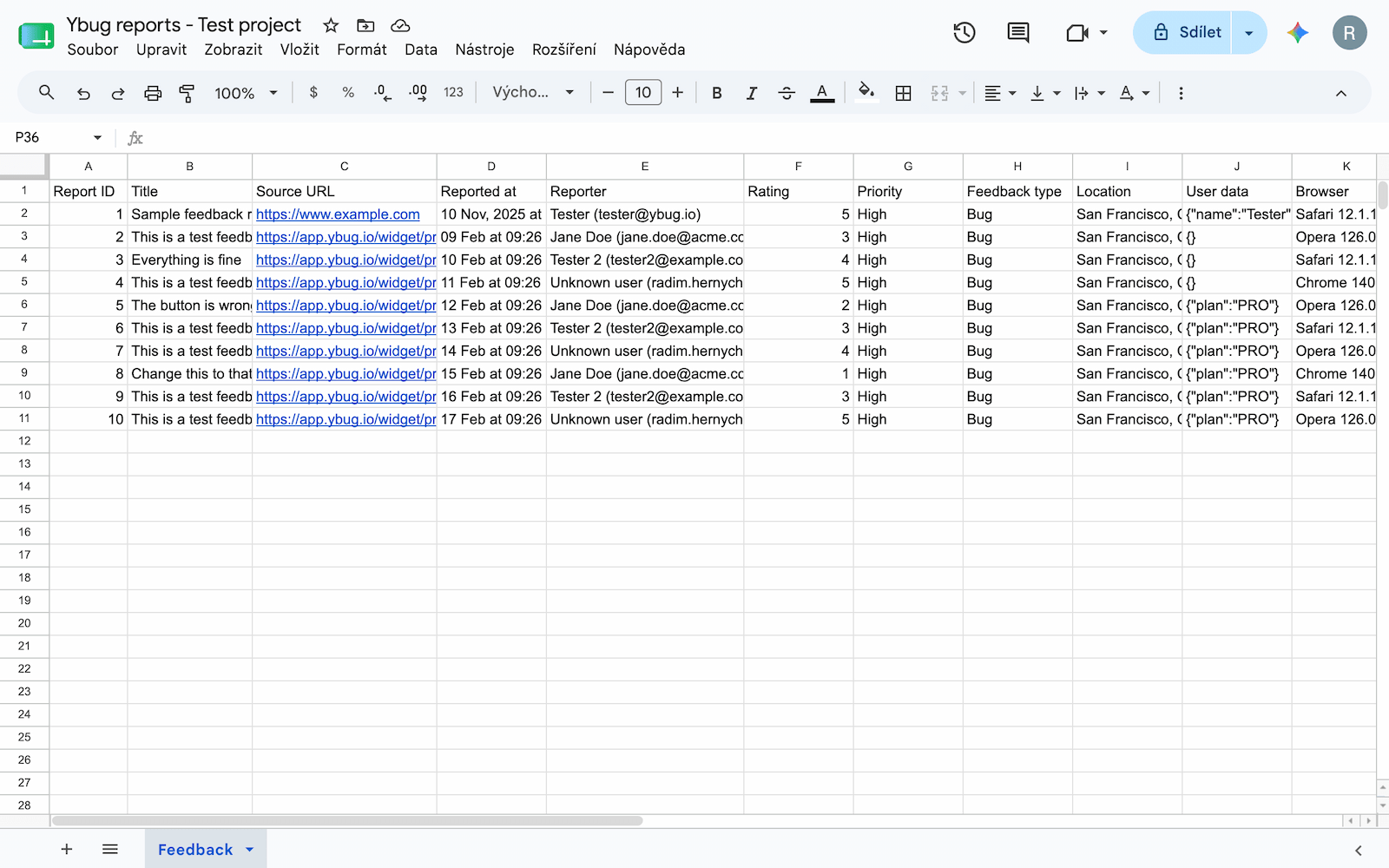
Each row arrives with the full picture
You pick exactly which fields get written; Ybug keeps them filled:
- Title, comment, Source URL, and Reported at timestamp
- Reporter name and email
- Feedback type, Rating, and NPS in their own columns
- Browser, OS, Screen size, and Viewport captured automatically
- Console summary (counts of JS errors and warnings)
- Location, Referrer, and User agent
- Screenshot link, Screen recording, Attachments, and a link back to the full report in Ybug
- Custom fields and user data you’re already collecting
Nobody retypes a thing.
Your sheet, your layout. Ybug keeps up.
Here’s the part people don’t expect from an automated feed: it’s still your spreadsheet, and you stay in full control of it.
Drag columns into whatever order makes sense to you. Rename the headers to match your team’s language. Even move the file to a different Google Drive folder or rename it entirely. Nothing breaks. Ybug tracks each column behind the scenes using the spreadsheet and worksheet IDs, not the filename or position, so every value keeps landing in the right place. And if you start collecting a new field later, Ybug simply adds a column for it.
So you get the convenience of automation without the usual rigidity. Shape the sheet around your workflow, not the other way around.
Why send your bug reports to Google Sheets
- No manual data entry. Every report is appended the moment it’s submitted.
- Real context in every row. Browser, OS, and viewport arrive as columns, so developers stop playing detective.
- Sort, filter, share. It’s a normal Google Sheet: filter by browser or date, and share a read-only link with a client or stakeholder. No extra Ybug seats, no new logins.
- Auto or on demand. Push every report automatically, or triage in Ybug first and forward only what matters. Ybug can even close a report the moment it’s logged.
- One sheet per project. Keep client work, internal QA, and separate products neatly apart.
Connect a Google Sheet and let every bug report land as a row, with the screenshot, context, and custom fields included.
(no credit card needed)
Get started in 3 steps
- Open your project settings → Integrations section in the Ybug dashboard.
- Flip the Google Sheets switch to On and authorize Ybug with Google.
- Pick a spreadsheet and worksheet (or let Ybug create them), choose your columns, and save.
The integration is configured per project, and the whole thing takes about a minute. For a step-by-step walkthrough, see the Google Sheets integration docs, explore the Google Sheets integration, or browse all available integrations.
Turn feedback into a system, not a chore
Feedback only helps you when it’s organized, visible, and actually used. The Ybug + Google Sheets integration takes the most chaotic part of the process, getting reports into one shared place, and makes it happen on autopilot, turning a Google Sheet into a lightweight bug tracker your whole team can read.
Connect your Ybug project to Google Sheets today and watch your first reports roll in row by row.