[New Integration] Ybug + Microsoft Teams

What’s in this article
We are very happy to announce that Ybug’s app finally made it into Microsoft AppSource and is now publicly available. Our new Ybug + Microsoft Teams integration enables you to get instant notifications about every new feedback report created with Ybug. Notifications are sent into any Microsoft Teams channel you choose.
If your team already uses Microsoft Teams for daily communication, this integration helps make website feedback visible faster. Instead of waiting for somebody to open the Ybug dashboard, the right channel can be notified as soon as a user, client, tester, or teammate submits a report.
Why send Ybug feedback to Microsoft Teams?
Feedback loses momentum when the right people do not see it. A bug reported during a client review, a broken checkout flow, or a confusing onboarding step should not sit unnoticed until the next dashboard check.
With the Microsoft Teams integration, new Ybug reports can appear in a channel where your team already discusses product work, QA, support, or client projects. The notification gives everyone a quick heads-up and a link back to the full report in Ybug.
What the integration is good for
- QA teams can watch new reports during testing sessions.
- Developers can see urgent bugs without leaving Microsoft Teams.
- Project managers can follow client feedback as it arrives.
- Support teams can spot issues that may affect customers.
- Agencies can create project-specific Teams channels for client review feedback.
How to install?
The configuration has two parts. First, you need to set up the Ybug connector in your Microsoft Teams account. On the connector configuration page you have to copy the Webhook URL. Then go back to Ybug, turn on the Microsoft Teams integration, and paste the Webhook URL there. Please refer to our documentation page for more details.
- Choose the Microsoft Teams channel where new feedback notifications should appear.
- Add or configure the Ybug connector for that channel.
- Copy the generated Webhook URL from Microsoft Teams.
- Open your Ybug project dashboard and go to Integrations.
- Enable Microsoft Teams and paste the Webhook URL.
- Save the integration and submit a test feedback report.
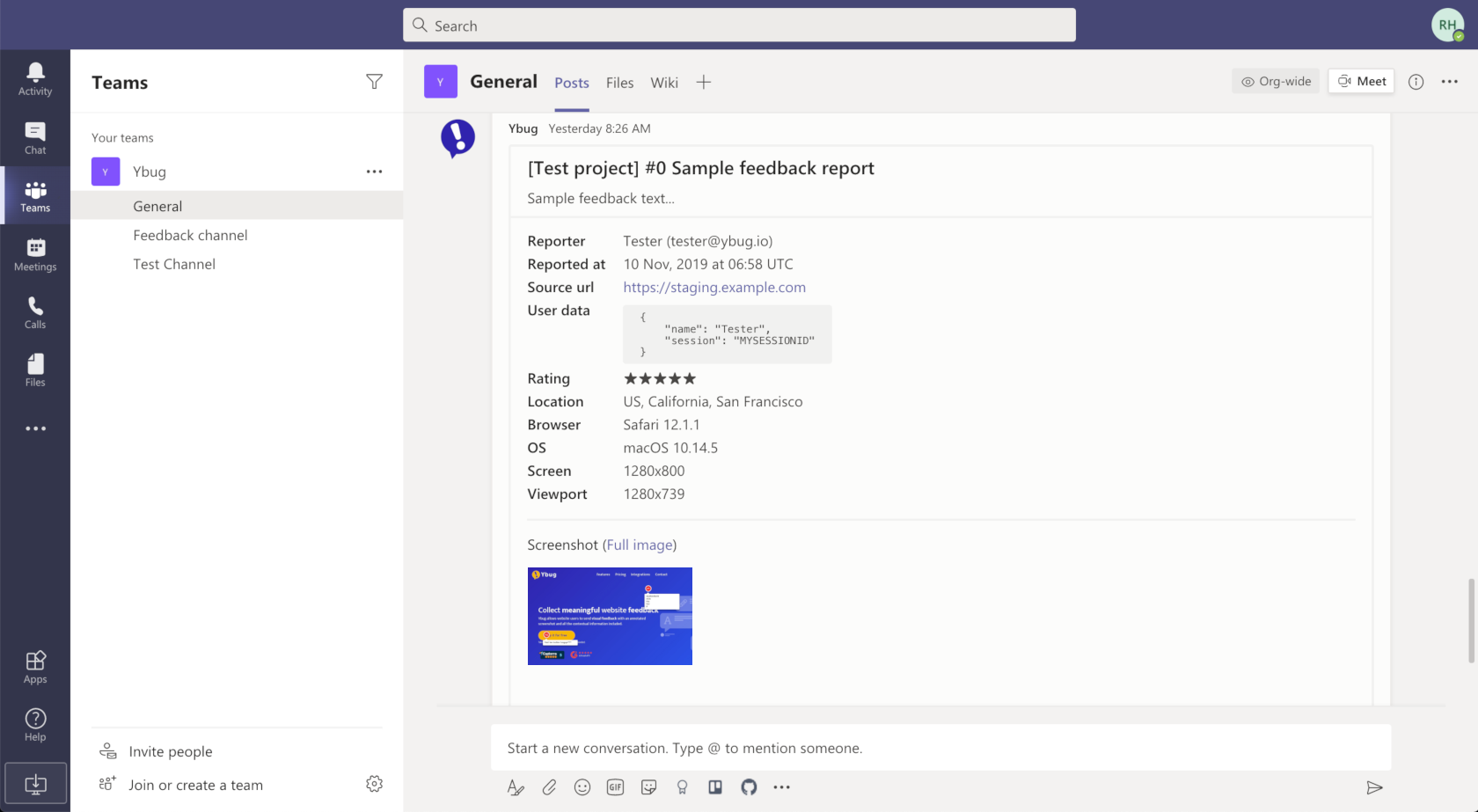
Recommended channel setup
For small teams, one channel such as “Website feedback” or “Bug reports” may be enough. Larger teams usually benefit from a more specific setup. For example, you can send production feedback to a support channel, staging feedback to a QA channel, and client project feedback to a dedicated project channel.
The goal is to avoid noisy notifications while still making important reports visible. If every report goes to a general channel with hundreds of daily messages, your team may miss the signal. If reports go to a focused channel, the notification is easier to act on.
Example: launch-day monitoring
Imagine a SaaS team launching a new settings page. The team creates a temporary Microsoft Teams channel for launch monitoring and connects Ybug reports from the staging and production projects. When users submit feedback, the team can quickly discuss whether the report is a bug, a usability issue, or a support question.
Developers still use Ybug for the full screenshot and browser context, but Microsoft Teams helps the team react quickly.
Tips for better feedback notifications
- Choose a channel with clear ownership. Somebody should be responsible for reviewing incoming reports.
- Use project-specific channels when needed. This keeps client and product feedback separate.
- Agree on response rules. Decide what counts as urgent and when a report should become a development task.
- Keep the Ybug dashboard as the source of truth. Use Teams for awareness and discussion, but keep report details and status in Ybug or your connected task tool.
- Test the connector after setup. A sample report confirms that the channel receives notifications correctly.
Keep the team in the loop
The Ybug + Microsoft Teams integration is a simple way to make feedback more visible. New reports can reach the right channel instantly, giving your team a faster path from user feedback to investigation, discussion, and resolution.