Figma feedback vs. live website feedback: when to use which

What’s in this article
- Key takeaways
- What is Figma feedback?
- What is live website feedback?
- What are the key differences between Figma feedback and live website feedback?
- Why does the wrong feedback type cost extra revision rounds?
- How do you set up design feedback in Figma?
- How do you collect live website feedback on staging?
- Which tools work best for each feedback type?
- FAQ
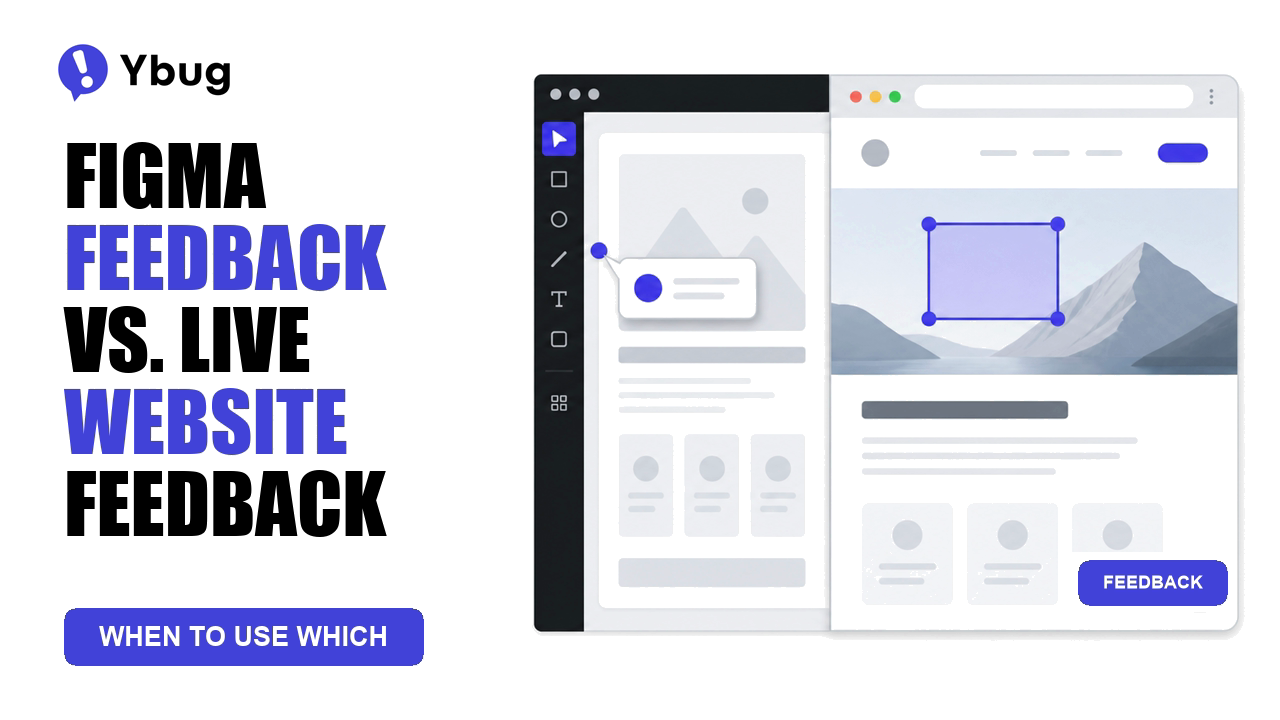
Figma feedback is feedback given directly on a Figma design file or prototype before any code is written, and its main advantage is that changes cost minutes of designer time instead of hours of developer time.
Key takeaways
- Figma feedback covers design decisions: visual direction, layout, typography, color, and copy. It belongs in the design phase, on static frames or clickable prototypes.
- Live website feedback covers implementation: how the build renders in a real browser, responsive behavior, broken interactions, and console errors. It belongs on staging and after launch.
- Mixing them up costs revision rounds. Design changes requested on staging mean a redesign plus a rebuild; implementation bugs reported in Figma cannot be reproduced at all.
- Each phase needs its own tool: Figma’s native comments for design review, and a visual feedback widget on the staging URL for live review.
- Most web projects need both. The job is sequencing them, not picking one.
Feedback arriving in the wrong place is one of the most consistent reasons web projects pick up extra revision rounds. Once your team agrees on what each type of feedback is for, the right tool for each phase becomes obvious.
What is Figma feedback?
Figma feedback is any comment, annotation, or approval left on a Figma file, frame, or prototype while the design is still being shaped. No developer has touched it yet, so everything is still cheap to change.
It typically covers:
- Visual decisions: color palette, typography, spacing, and visual hierarchy.
- Layout and structure: page composition, element placement, and information architecture.
- Brand alignment: whether the design follows the brand guidelines.
- Content and copy: headline length, placeholder accuracy, and content hierarchy.
Figma’s native comments work well here. Reviewers pin a comment to an element or drag a region, and the designer sees it right on the frame. Comments on prototypes work the same way and show up in the underlying design file, so feedback on a Figma prototype and feedback on the static frames end up in one place.
One catch that comes up constantly in agency work: Figma comments require a Figma account with at least view access. Clients who do not want to sign up fall back to emailing screenshots or sending notes through Slack, and that feedback gets lost. We cover how to handle that below.
What is live website feedback?
Live website feedback is feedback given on a working page in a browser, whether that is a staging environment, a preview URL, or the production site. The design is no longer a picture. It is code running on real devices.
It covers:
- Implementation accuracy: does the build match the approved design?
- Responsive behavior: what happens at 375 px, 768 px, and 1440 px, and everywhere in between?
- Functional issues: do forms submit, does the mobile menu open, and do links go where they should?
- Cross-browser behavior: does the layout hold in Safari, Firefox, and Chrome on iOS?
- Interactions and animations: hover states, scroll-triggered effects, and form validation with real data.
- Accessibility and performance: keyboard navigation, screen reader behavior, and how fast the page actually loads.
- Console errors: are JavaScript errors breaking things the reviewer cannot see?
None of this exists in Figma. As MDN’s guide to responsive web design explains, modern layouts are fluid by default, so a page has to be judged in the space between breakpoints, not only at the three widths a designer mocked up. That judgment can only happen in a browser.
For this phase, a visual feedback tool installed on the staging URL does the heavy lifting. When a reviewer clicks the feedback button, Ybug captures a screenshot they can annotate, plus browser version, operating system, screen resolution, and page URL, with console logs capture running in the background. The developer gets a report they can reproduce without a single follow-up question.
What are the key differences between Figma feedback and live website feedback?
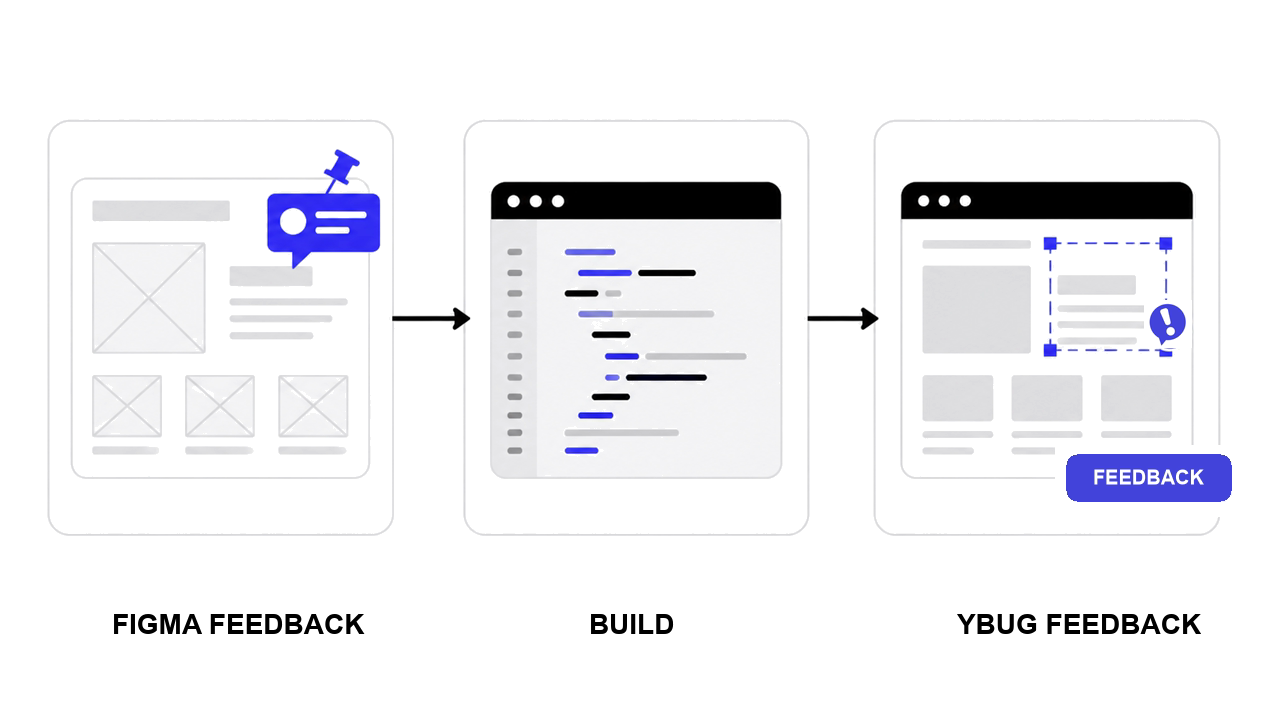
| Figma feedback | Live website feedback | |
|---|---|---|
| When it happens | Design phase, before development | Development, staging, or post-launch |
| What it covers | Visual, layout, brand, and content decisions | Implementation, functionality, responsiveness, and bugs |
| What it cannot judge | Real animations, hover states, form logic, load speed, and accessibility | Design direction, which should already be locked |
| Who gives it | Designers, clients, PMs, and brand stakeholders | Developers, QA testers, clients, and end users |
| Cost of a change | Low: moving elements in Figma takes minutes | Higher: developer time for every change |
| Technical context needed? | No, visual review only | Yes: browser, OS, URL, and console logs |
| Right tool | Figma comments and Loom walkthroughs | Visual feedback widget on the staging URL |
Why does the wrong feedback type cost extra revision rounds?
Two mismatches show up again and again. We have seen both in projects run by teams using Ybug, and they are usually process problems, not people problems.
Mismatch 1: implementation feedback given in Figma terms. A client approves the Figma prototype. The team builds it. At the staging review, the client says the page “looks different from what we approved”: spacing is off, a button is the wrong shade, or a section stacks oddly on mobile. Figma’s own developer handoff guide describes exactly this scenario: the designer uses the latest color variable in Figma, the token in the codebase is outdated, and the build renders a different color. It is a real implementation bug, but if it arrives as a vague comment with no browser or viewport attached, the developer cannot reproduce it. Having the developer work from Figma’s Dev Mode, where tokens and annotations are visible, reduces how often this drift happens in the first place. Structured QA testing on staging, with a feedback tool capturing the context, catches it in one pass.
Mismatch 2: design feedback given on staging. The team skips a formal Figma sign-off and asks the client to review on staging instead. The client requests a new font, a different hero layout, or restructured navigation. Each request now means going back to Figma, redesigning, and rebuilding. That is a full extra cycle that a 30-minute Figma design review would have handled for free.
Feedback becomes expensive when it arrives one phase too late. A color change takes minutes in Figma but can take hours once it has to be implemented across multiple breakpoints.
How do you set up design feedback in Figma?
What belongs in a Figma design review?
- Define the scope up front. Design direction, layout, brand alignment, and copy. Explicitly out of scope: “does this work on mobile?” That is a staging question.
- Comment on the prototype, not just the frames. Feedback on Figma prototype flows shows reviewers the whole journey, not just a screen, which cuts down on “I did not realize this was a dropdown” comments later.
- Get written sign-off before development starts. Verbal approval on a call is not sign-off. A resolved comment thread or an approval message in writing is.
What if the client will not create a Figma account?
This is the most common blocker we hear from agencies. Three options that work:
- Give a two-minute walkthrough of how to pin a comment. Most resistance is unfamiliarity, not refusal.
- Ask for feedback in one channel only. If the client insists on email, consolidate it into Figma yourself so the designer has a single source of truth.
- Move to staging review sooner for clients who simply will not engage in Figma, but lock the design scope before you do. Otherwise you inherit mismatch 2.
How do you collect live website feedback on staging?
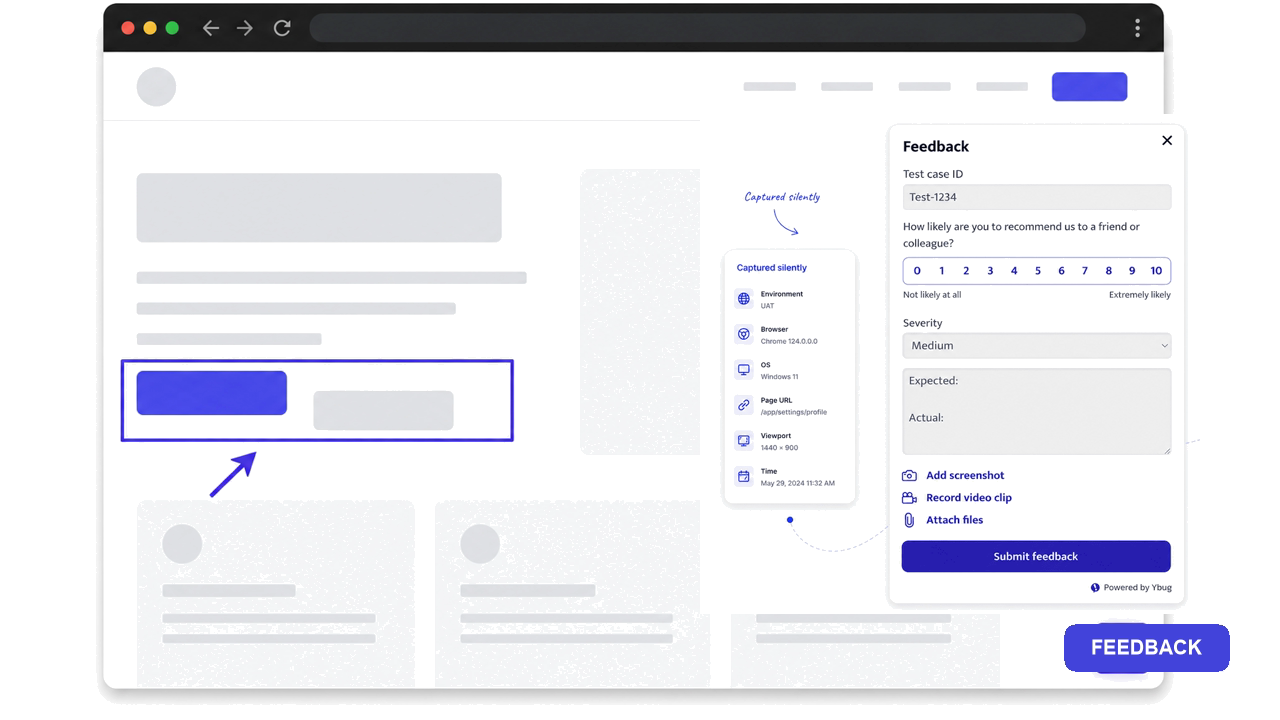
- Install the widget before sharing the URL with anyone. Adding a feedback widget via a JavaScript snippet or a CMS plugin takes a few minutes. Do it before the first reviewer opens the page, not after the first email arrives.
- Run an internal QA pass first. Let developers and testers clear the obvious technical bugs before the client sees the URL. A client on an unpolished staging site reports broken buttons instead of reviewing what you need approved.
- Brief reviewers on scope. Implementation accuracy, responsiveness, and functionality. Not design direction, which is already locked.
- Set a feedback deadline. Open-ended staging reviews drag on and blur into post-launch support.
- Route reports into your project tool automatically. With Ybug integrations, every staging report lands in Jira, Trello, Asana, or GitHub as a structured ticket with the screenshot and technical context attached.
For a feedback tool for agencies juggling several clients, this two-tool setup is simple to explain: “Design comments go in Figma. Anything on a URL goes through the feedback button.” For how agencies structure the sign-off cycle itself, see our guide to review and approval software.
A kickoff message you can copy: “Phase 1 (Figma): this is where we approve the look, the copy, and the layout. Changes here are fast and free. Phase 2 (staging URL): this is where we report anything that does not work, looks wrong on mobile, or breaks in a browser, using the feedback button on the page. Look and layout are locked by then.”
Once the staging URL is ready, you can have the feedback button live before your first reviewer opens the page. The annotated screenshot and technical context travel together, so the developer can start with a reproducible report.
Collect annotated screenshots and technical context directly from your staging URL.
(no credit card needed)
Which tools work best for each feedback type?
| Feedback type | Best tools | Why |
|---|---|---|
| Figma design review | Figma native comments, Loom | Pinned to the frame, no extra setup |
| Feedback on a Figma prototype | Figma prototype comments, Maze, Useberry | Capture flow and interactions, not just static screens |
| Staging and live site review | Ybug | Annotated screenshot plus browser, OS, URL, and console logs on every report |
| Cross-browser checks | BrowserStack, Chrome DevTools device mode | Test real browser and device combinations |
In the Figma vs. live review debate, the honest answer is “both, in order.” For web design feedback and design review workflows, keep design comments in Figma and everything that runs on a URL in a visual feedback widget. Nobody has to guess which channel a comment belongs in.
Give every staging report the screenshot and browser context your developers need.
(no credit card needed)
![Best design feedback tools for creative teams [2026]](https://ybug.io/images/blog/featured/best-design-feedback-tools.avif)