Ybug + Azure DevOps: turn website feedback into Azure Boards work items

What’s in this article
Ybug now integrates with Azure DevOps, turning website feedback into Azure Boards work items with the reporter’s comment, screenshot and browser context included. Testers and clients report the problem on the page where they see it, and your developers pick it up where they already plan the work.
A report that says “checkout button doesn’t work” leaves your developer with questions: which page, which browser, and what happened on screen? Someone has to go back to the reporter, collect the answers and type them into a work item.
The report was useful. Rebuilding it into a work item was not.
Key takeaways
- Ybug creates an Azure Boards work item for every report it forwards, with the reporter’s comment, the page details and the screenshot included.
- You choose the Azure DevOps project, work item type, area, iteration and assignee for each Ybug project.
- The integration works with Azure DevOps Services and with Azure DevOps Server, as long as the server is reachable over HTTPS from the internet.
- Reports can go to Azure DevOps automatically, or your team can review them in Ybug first and forward only the ones worth tracking.
- Reporters do not need access to your Azure DevOps organization to send feedback.
Meet the Ybug + Azure DevOps integration
The new Azure DevOps integration connects the Ybug feedback widget with Azure Boards. A tester, client or user clicks the Feedback button on your website, marks up a screenshot of the page, adds a note and sends the report.
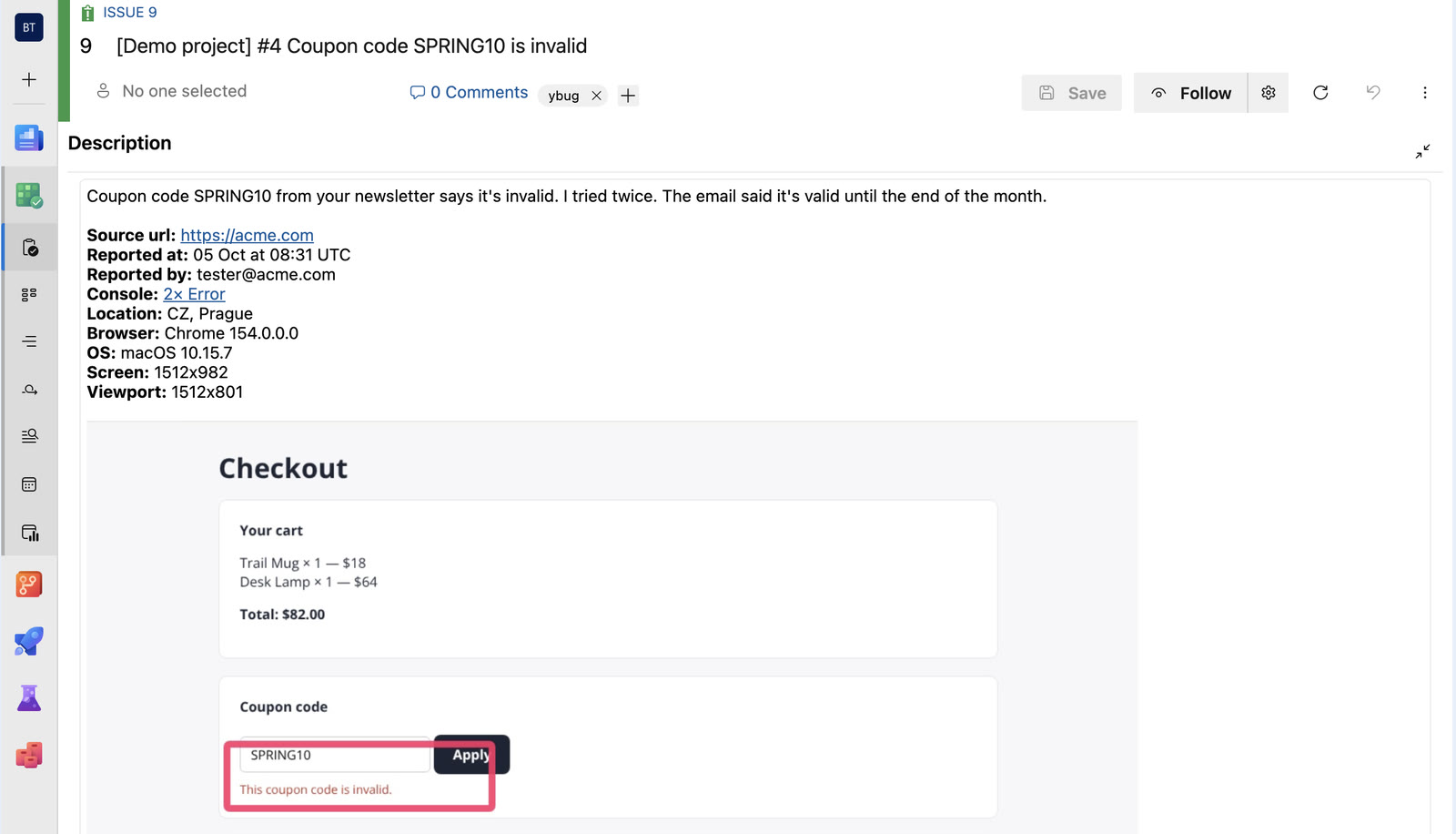
Ybug then creates a work item in the Azure DevOps project you picked. For a Bug, it fills in:
- Title: the report title in a format you can change, for example
[Acme Store] #128 Checkout button doesn’t work. - Repro Steps (or Description for types without it): the reporter’s comment, page URL, browser, operating system and screen size, with the screenshot shown inline.
- Attachments: the screenshot as a file, plus the console log when you switch on Attach console log.
- Links: a hyperlink back to the original Ybug report, and a link to the screen recording when the reporter made one.
- Tags:
ybug, plus the tags from the Ybug report. - Priority: Ybug’s default priorities map to Azure DevOps priority 1 to 4.
How the workflow works
Someone reports a problem through the Ybug widget, Ybug creates the work item in the project, area and iteration you chose, and your team picks it up in Azure Boards with the queries, boards and sprints it already uses.
Automatic forwarding suits a busy QA round, where every report belongs on the backlog. Manual forwarding suits client projects, where some comments turn out to be questions or wishes rather than bugs. Either way, Ybug keeps the link to the created work item, and Close report after sending to Azure DevOps keeps the Ybug dashboard tidy once a report has moved on.
Why teams use Ybug with Azure DevOps
Developers get the context to investigate. The work item links back to the full Ybug report, so the annotated screenshot and the conversation with the reporter are one click away.
QA leads and product managers keep the backlog clean. Incoming feedback can wait in Ybug while someone closes the duplicates and answers the questions. Only the reports that need work go on to Azure Boards.
Clients and testers report without an Azure DevOps login. During UAT or a client review, reporters use the Feedback button on the site. They never touch your organization, and your team still receives structured work items.
Your Azure DevOps setup stays in charge. Ybug creates the work item. Your process rules, boards, queries and notifications take it from there, and any field Ybug doesn’t set keeps the default from your process.
Send your next bug report to Azure Boards with the screenshot already attached.
(no credit card needed)
Works with your process and your server
Ybug reads the work item types of the project you select. In Agile, Scrum and CMMI projects it picks Bug and writes the report into Repro Steps. In projects on the Basic process it picks Issue and uses Description. If your team tracks feedback as User Stories or Tasks, you can choose any other enabled type.
The integration connects to Azure DevOps Services at dev.azure.com and to Azure DevOps Server. A Server installation has to be reachable over HTTPS from the internet: Ybug can’t connect to a server behind a firewall or on a private network.
The integration is one-way. Ybug creates the work item and stores its link, but changes you make in Azure DevOps don’t sync back to Ybug yet. Two-way status sync is on our roadmap.
How to get started
- In Azure DevOps, create a personal access token with the Work Items (Read & write) and Project and Team (Read) scopes. Create it for your organization, not for All accessible organizations.
- In the Ybug dashboard, open project settings → Integrations and turn on Azure DevOps.
- Enter your organization name, or the collection URL of your Azure DevOps Server, paste the token and click Authenticate with Azure DevOps.
- Pick the project and work item type, plus an optional area, iteration and assignee, then save your settings. The Test button sends a sample report.
Azure DevOps tokens expire after a year at most. When yours does, Ybug pauses the integration and emails you, and a new token gets forwarding going again.
For the full walkthrough, including what to check when a Bug doesn’t appear on your board, see the Azure DevOps integration docs. For the product overview, visit the Azure DevOps integration page.
Turn website feedback into Azure Boards work items
If your team plans in Azure Boards, the Ybug + Azure DevOps integration gives website feedback a direct route there. Try Azure DevOps bug tracking with Ybug and send your next report straight to the backlog.