What are JavaScript console logs? A guide for non-developers

What’s in this article
JavaScript console logs are messages the browser records about what a website’s code is doing, and their main advantage is that they often show developers what went wrong and where.
Key takeaways
- The console is the browser’s built-in notepad: it records errors, warnings, and status messages from a page’s code.
- You can open it in any browser: press F12 (then click the Console tab) on Windows, or Cmd+Option+J in Chrome on a Mac.
- Red messages are errors, yellow are warnings - and not every red line means the site is broken.
- The console usually clears on reload, which is why bugs are so hard to document after the fact.
- Bug reporting tools can attach console logs automatically, so nobody has to open developer tools at all.
Your developer just asked you to “open the console and send me a screenshot.” If that sentence made your stomach drop, this guide is for you. Here’s what the console actually is, how to open it in any browser, and how to get its contents to your developer without a crash course in web development.
What are console logs?
Console logs are a web page’s running diary. While a site loads and runs, its JavaScript code writes notes into a hidden browser panel called the console: confirmations that things worked, warnings that something looks off, and errors when something breaks.
Developers put many of these messages there on purpose. A line of code like console.log("Payment form loaded") confirms the page reached that point. The browser adds its own entries too: a script that failed to load, a blocked request, or a JavaScript error log entry the moment the code crashes. The console’s commands share a standard interface, documented in the MDN Web Docs console reference, though exact behavior can differ slightly between browsers.
Think of the console as a flight recorder. Visitors experience the flight; the console records what the engines were doing the whole time. When a bug happens, that recording is often the only hard evidence of why.
How do you open the browser console?
Every modern browser ships with a console built in - there’s nothing to install. The quickest route: right-click anywhere on the page, choose Inspect, and click the Console tab. Keyboard shortcuts are even faster:
| Browser | Windows / Linux | Mac |
|---|---|---|
| Chrome | F12 or Ctrl+Shift+J | Cmd+Option+J |
| Edge | F12 or Ctrl+Shift+J | Cmd+Option+J |
| Firefox | F12 or Ctrl+Shift+K | Cmd+Option+K |
| Safari | not available | Cmd+Option+C (after enabling the Develop menu) |
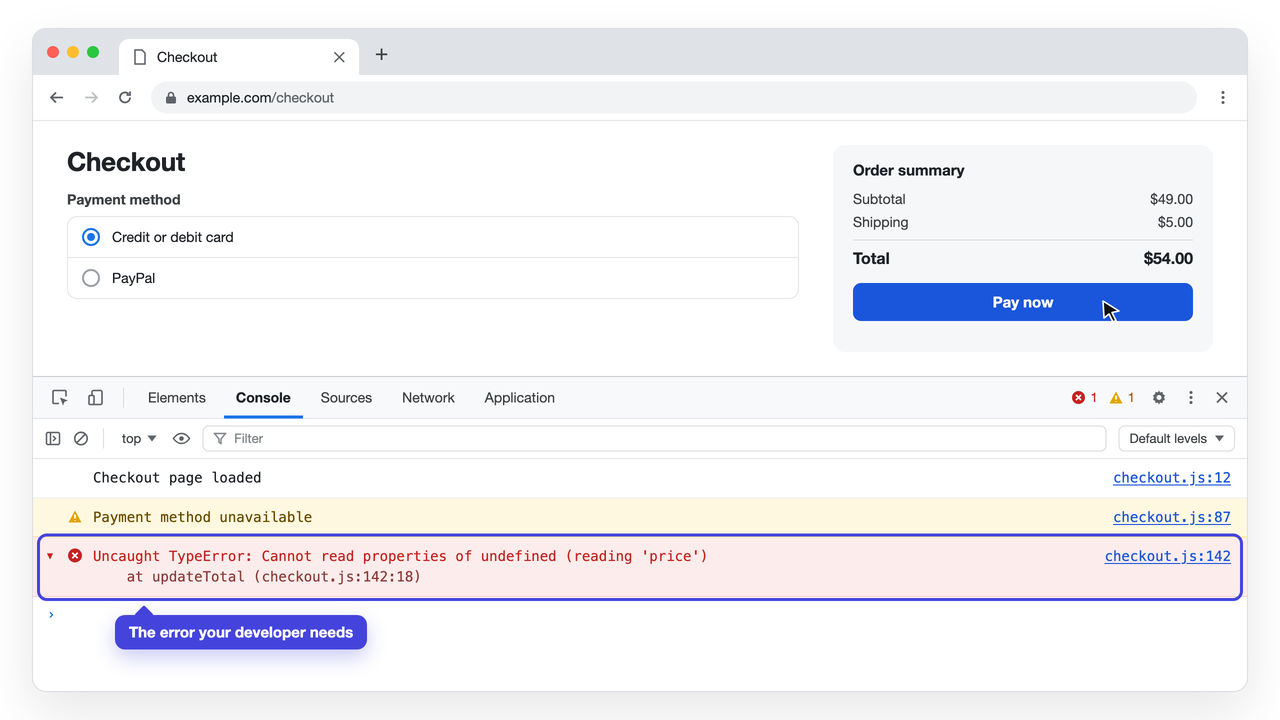
Google’s own Chrome DevTools Console documentation is a good next step if you want to go deeper than this guide. (Shortcuts can vary slightly with browser version and system settings.)
Where is the developer console on a Mac?
In Chrome, Firefox, and Edge, the shortcuts above work out of the box. Safari is the exception: the developer console on a Mac stays hidden until you open Safari > Settings > Advanced and check “Show features for web developers,” as described in Apple’s official Safari guide. After that, Cmd+Option+C opens the console.
Can you see console logs on a phone?
Not easily. Most mobile browsers don’t offer an accessible developer console. Developers can inspect a mobile browser remotely from a desktop, but that takes extra setup - firmly a developer task. If bugs keep coming in from phones, the realistic option is a tool that captures the logs automatically when someone reports a problem. More on that below.
What do browser console errors mean?
Open the console on almost any website and you’ll see a mix of messages. Color is your fastest clue to what matters:
| Message type | Color | What it tells you |
|---|---|---|
| Error | Red | Something failed: code stopped running or a resource didn’t load |
| Warning | Yellow | Something is outdated or risky, but the page kept going |
| Log / info | Plain | Status notes developers left for themselves |
Here’s the part that surprises most non-developers: not every red line is a crisis. Some browser console errors come from third-party scripts or blocked resources - chat widgets, analytics, an ad blocker interfering - and may be harmless. Others can break something important, like a login or a payment step. Timing is your best first clue: check whether the error appears at the exact moment your bug happens, then whether it relates to the broken feature.
How do you read a JavaScript error log?
A typical entry in a JavaScript error log has three parts: what broke, a short reason, and where it happened. For example:
Uncaught TypeError: Cannot read properties of undefined (reading 'price') - checkout.js:142
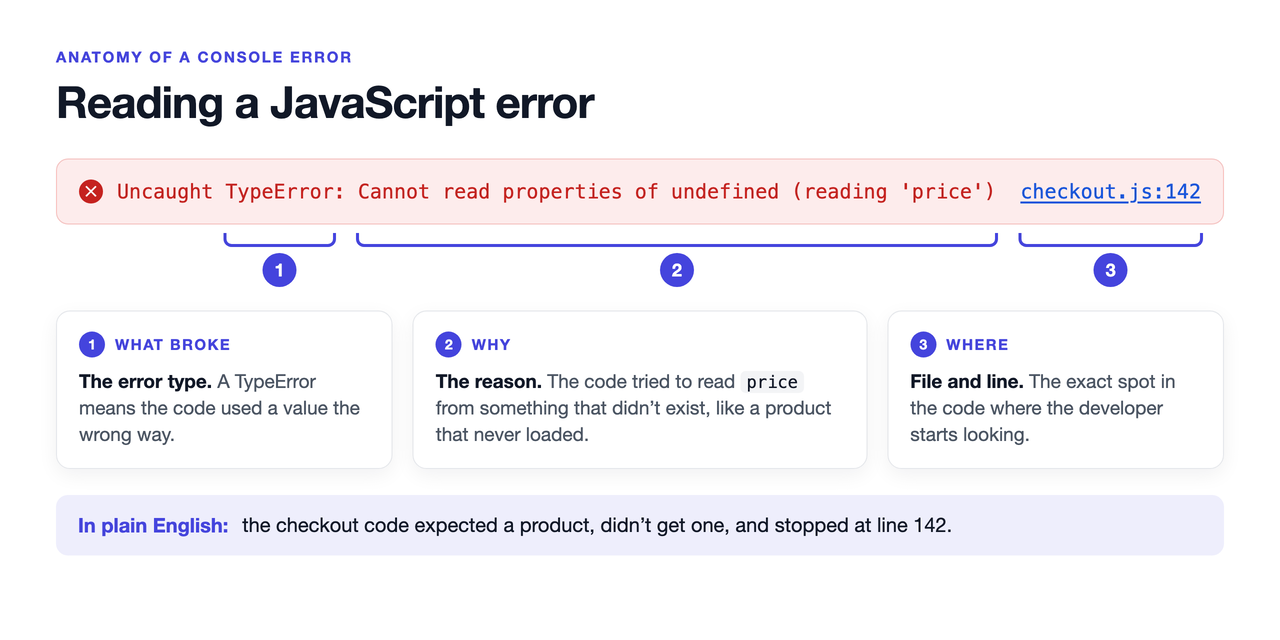
Translated into plain English: code in the file checkout.js, around line 142, tried to read a price from something that didn’t exist (for example, a product that never loaded). You don’t need to understand it, let alone fix it. Passing that one line along gives a developer a concrete lead to investigate and can speed up the diagnosis considerably.
Why do developers keep asking for console logs?
Because “the checkout button doesn’t work” describes what you saw - not why it happened. The js error log behind that moment usually includes a file name and line number that narrow down the cause: the difference between guessing where to start and having a concrete lead to investigate.
Compare two versions of the same report:
Weak: “The filter doesn’t work.”
Better: “On the staging site, I selected ‘In stock’ and clicked Apply. The results went empty even though several products were in stock. Happens every time in Chrome on Windows.”
Attach the matching console error to the better version and a developer can start working immediately. In practice, though, the hand-off keeps failing in the same three ways:
- Most people don’t know the console exists. Instructions like “right-click, hit Inspect, go to the Console tab, screenshot it” often end with a photo of the wrong panel - or no reply at all.
- Logs usually vanish on reload. By default, the console clears when the page refreshes or you move to another page, so by the time a developer asks for logs, the evidence is gone. Chrome’s “Preserve log” option in the console settings keeps messages across reloads - but most non-technical reporters have never heard of it.
- The back-and-forth kills tickets. The reporter files a bug, the developer can’t reproduce it, the developer asks for logs, the reporter can’t recreate the moment. The ticket quietly dies as “cannot reproduce.”
Different roles hit the same wall. A project manager running client UAT doesn’t want to train clients on developer tools. A freelancer doesn’t want to email a six-step DevTools tutorial to someone who just paid for a finished website. A QA tester wants the evidence attached the first time, not on the third request.
We kept seeing the same dead end: the person who hits the bug is almost never the person who can read the console. Our take is simple - the reporter should only describe what they saw, and the technical evidence should travel with the report on its own.
That’s the whole promise of visual bug reporting: the person who finds a bug shouldn’t need technical skills to document it perfectly.
Ybug captures console logs automatically with bug reports.
(no credit card needed)
What should you do when a developer asks for console logs?
If you’d rather handle it manually, these 5 steps cover it:
- Open the page where the problem happens.
- Open the console (see the shortcut table above).
- Repeat the steps that trigger the bug, keeping the console open.
- Copy the red error message, or take a screenshot of the console.
- Send it along with the page URL, your browser, and one sentence about what you did.
Two don’ts: don’t clear the console before copying, and don’t type commands you don’t understand into it - the console can run code on the page.
How can you share console logs without opening developer tools?
Let the reporting tool collect them for you. Ybug’s console logs capture feature records the JavaScript errors, warnings, and log messages leading up to the moment someone reports a bug - automatically, in the background. The reporter clicks a feedback button and describes the problem in their own words; the screenshot, browser details, and available console output ride along.
Worth knowing: automatic capture starts once the Ybug script has loaded (placing the snippet in the page’s head shortens that gap), and browsers hide the details of errors from cross-origin scripts from the page itself, so Ybug receives a generic Script error. instead. Console logs are strong evidence, not a guaranteed recording of absolutely everything.
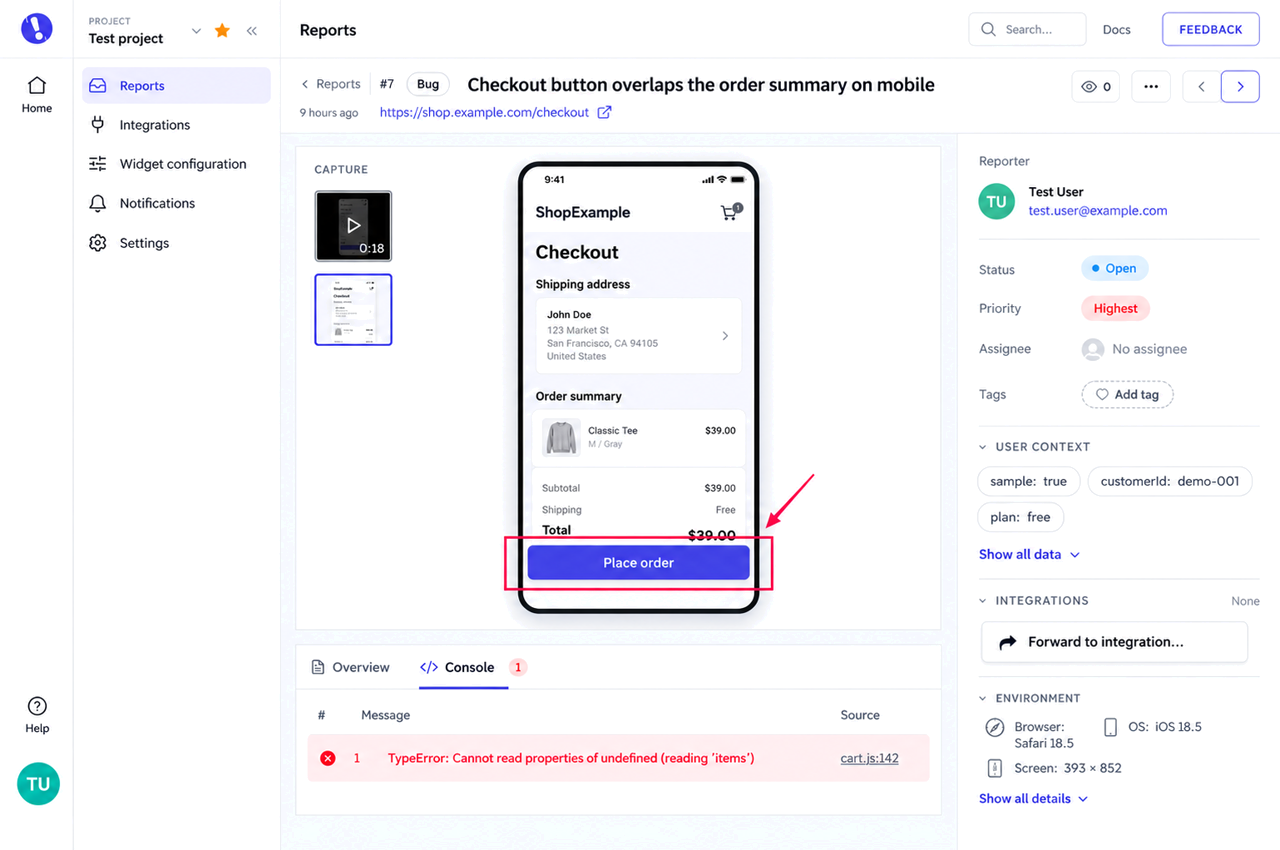
Here’s what that looks like in practice. An agency invites a client to review a staging site. The client clicks “Report a bug” on a broken product filter and types “the filter shows no results.” The developer opens the report and finds the annotated screenshot next to the console output with the failing script - no follow-up email, no DevTools tutorial. In most cases, that’s the end of the “can you send me the console?” follow-up: the reporter never opens DevTools or collects anything by hand.
Two things still make this work even better. Clear descriptions remain gold, so our guide on how to write a bug report covers the human half of a great report. And if you’re setting up website feedback for developers on your team, automatic log capture is the piece that finally makes bug reporting work for non-technical reporters too.
Stop chasing console logs and start receiving them with every report.
(no credit card needed)