No-code text customizations finally available

What’s in this article
You can finally customize Feedback Widget texts right from your dashboard.
At Ybug, we are always looking for ways to improve our Feedback Widget and make it even more useful for our customers. The Feedback Widget allows users to gather valuable feedback from their website visitors, which can help improve their online experience and drive business growth.
In this update, we have added a much-requested feature that allows users to customize the most useful texts in the Feedback Widget directly from their dashboard. This provides an additional, more convenient way to make these changes and ensures that the widget can be easily tailored to each customer’s specific needs.
Why text customization matters
The default widget labels work well for many teams, but the right wording depends on your website, audience, and feedback process. A SaaS product may want a button that says “Report a bug.” A marketing website may prefer “Send feedback.” An agency reviewing a staging site with clients may want the form to say “Leave a comment.”
Small wording changes can reduce friction. When visitors understand what the widget is for, they are more likely to submit useful feedback instead of ignoring the button or wondering whether it is meant for them.
No code needed
Previously, users could only customize these texts by modifying the installation JavaScript snippet, which required technical expertise and was not always convenient. That option is still available, but it should not be necessary for simple copy changes.
Now you can update common widget text labels directly from the Ybug dashboard. This is faster for non-technical teammates and safer for production websites because you do not need to ask a developer to edit the embed code just to change a label.
How to customize widget texts
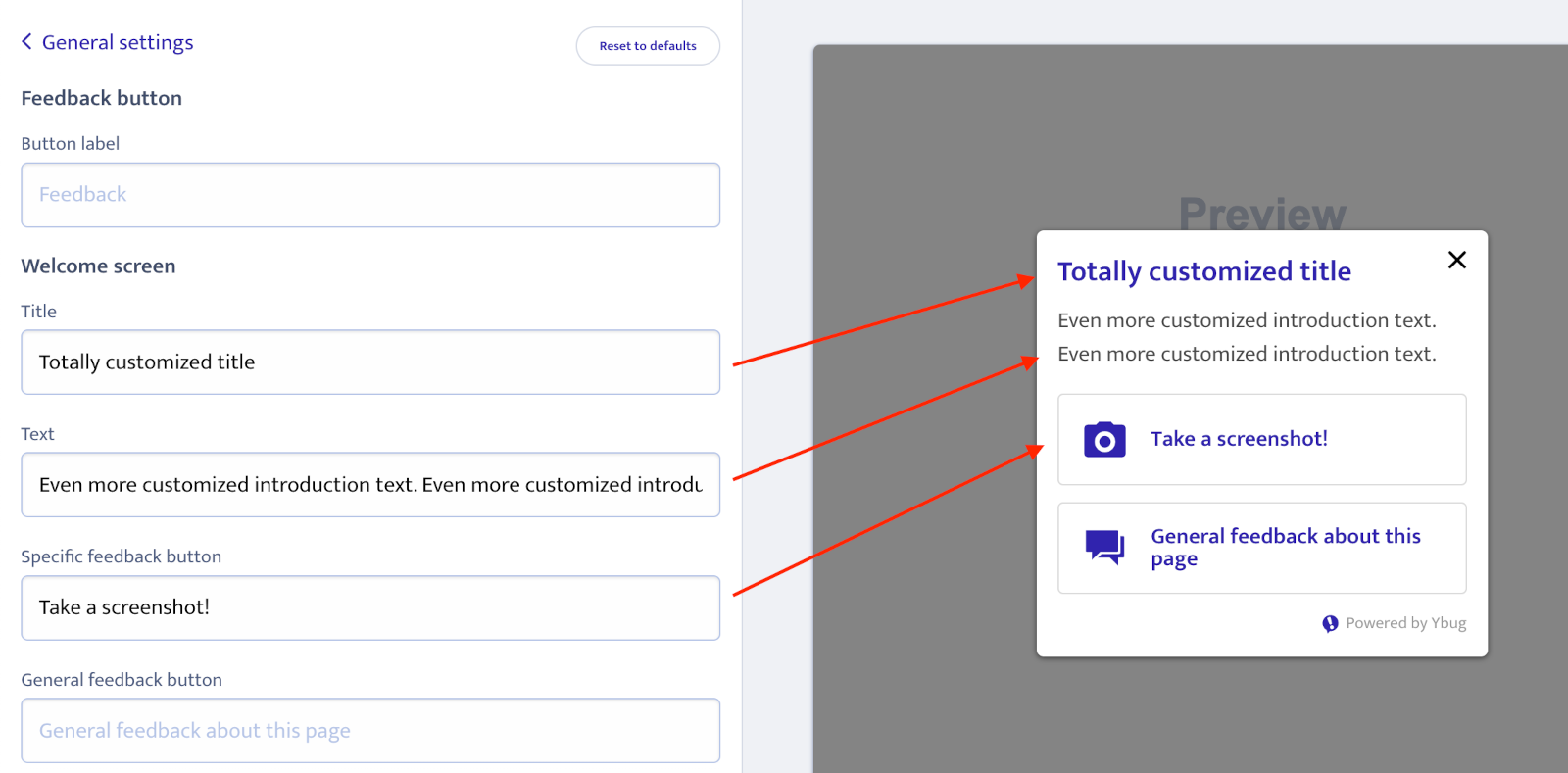
How to do it? Go to your project dashboard on Ybug, select the Customize widget button, click Customize texts, and edit the texts as you like:
- Open your Ybug dashboard and choose the project you want to edit.
- Click Customize widget.
- Open the Customize texts section.
- Update the labels and messages you want to change.
- Save your changes and test the widget on your website.
Practical examples
Here are a few ways teams can use custom widget text:
- Product teams can use direct copy like “Report a bug” to encourage technical feedback from beta users.
- Marketing teams can use softer language like “Share feedback” on landing pages.
- Agencies can customize the wording for client review, such as “Leave a comment.”
- Support teams can make the widget feel more helpful with labels like “Need help?”
Example: client review on a staging website
During a website review, clients may not think in terms of “bugs.” They are more likely to notice copy edits, layout issues, image choices, or missing information. Changing the widget label to “Leave a comment” can make the feedback process feel natural and reduce the need for extra instructions.
The team still receives structured Ybug reports with screenshots and technical context, but the client sees language that matches the review process.
Tips for writing better widget copy
- Be specific. “Report a bug” works when you want technical issues. “Send feedback” works when you want broader input.
- Keep labels short. Button text should be easy to scan and should not take over the page.
- Match the page context. A production app, staging site, and marketing page may need different wording.
- Avoid internal jargon. Use words your visitors and clients understand.
- Test the full flow. After changing text, submit a test report and check every step of the widget experience.
A simpler way to tailor Ybug
No-code text customization gives teams more control over the feedback experience without making the setup more complicated. You can keep the widget aligned with your brand, your audience, and your review workflow while still letting Ybug collect the screenshots and browser details your team needs.