

Appearance
Ybug + WooCommerce
Installing Ybug on your WooCommerce store
WooCommerce runs on WordPress, so the easiest way to install Ybug is with our Feedback Widget plugin. Follow these steps to add the Feedback button to your store.
1. Ybug: copy your Project ID
Go to your Ybug dashboard. Select the project from the dropdown menu in the top-left corner, navigate to the widget configuration tab, and locate your Project ID. Copy it — you'll need it in the next step.

2. WordPress: install the plugin
2.1 Go to your WordPress admin dashboard, navigate to the Plugins section, and click Add New Plugin.

2.2 In the search bar, type "Ybug Feedback Widget", find the plugin in the search results, and click Install Now.
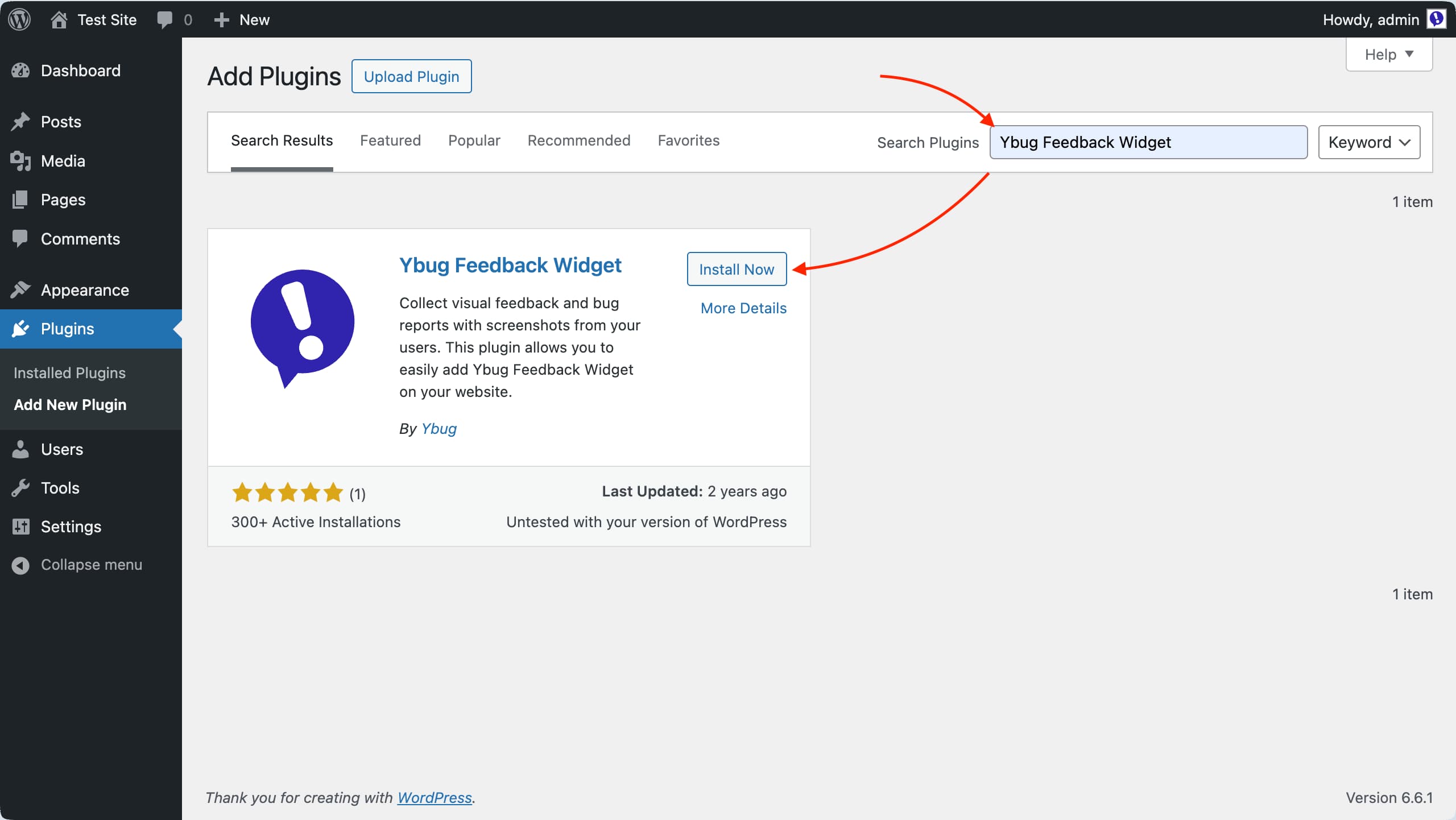
2.3 Once installed, click Activate to enable the plugin on your WooCommerce site.
3. WordPress: configure the plugin
3.1 After activation, go to the plugin settings page by navigating to Settings → Ybug Feedback Widget.
3.2 Paste your Project ID (copied earlier) into the designated field.
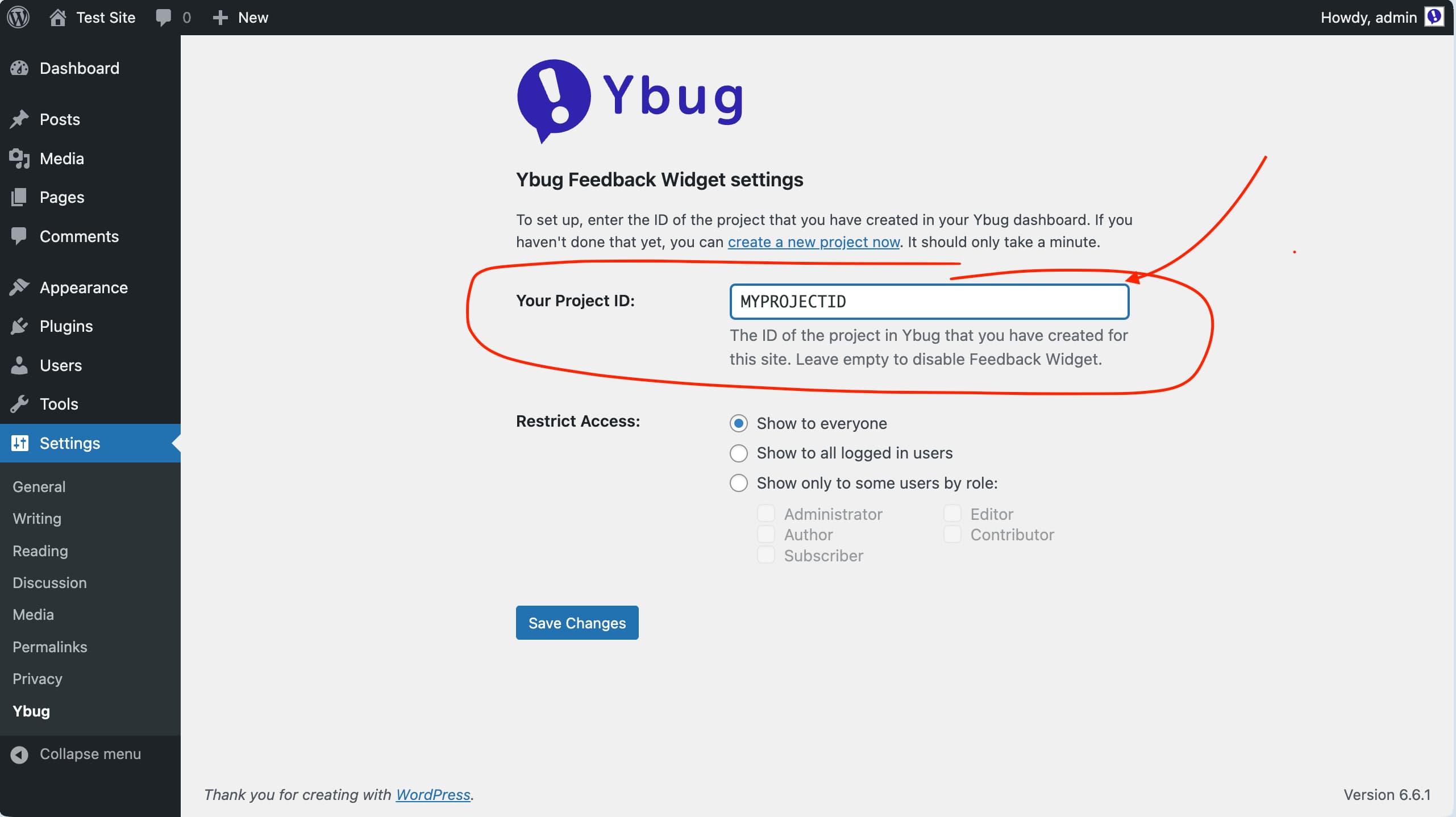
3.3 Confirm your configuration by clicking Save Changes.
3.4 Visit your store and refresh the page if needed. You should see the Feedback button on your WooCommerce pages.
4. WooCommerce: test key store flows
Use the Feedback button while testing the store flows where visual context matters most:
- Product pages and product variation states.
- Cart, mini-cart, and coupon states.
- Checkout fields, shipping methods, payment method selection, and order confirmation pages.
- My Account pages, login/register screens, and customer emails opened in the browser.
Ybug automatically captures the screenshot, URL, browser, OS, viewport size, and console logs with each report, so developers get the context they need to reproduce store issues.
5. WooCommerce: restrict feedback button access
By default, the Feedback button is visible to everyone. For WooCommerce stores, you may want to show it only on staging, only during QA, or only to logged-in testers.
The WordPress plugin lets you restrict access from the plugin settings page:
- Everyone: show the Feedback button to all visitors (default).
- Logged-in users: restrict visibility to users who are logged in.
- By user role: limit the Feedback button to specific roles, such as Administrators, Shop Managers, Editors, or a custom tester role.
Configure these settings under the Restrict Access section, then click Save Changes.
Checkout and sensitive data
Ybug automatically anonymizes password fields and card-like values. If your checkout contains additional private customer details, mark them with data-ybug-sensitive or configure anonymized elements in your widget settings. See Sensitive data protection for details.